Concept and Compositing (Part 2) Replace a Sky

Activity 10.1: Replace a sky

Using two images of your choice, replace a sky in one image with a sky from another image. 

If you are unable to find any suitable images in your library, stock photo sites Unsplash and Pexels provide free, high quality images.

Replace a Sky

For this exercise I was going out with my camera to take some photos but it’s been raining quite heavily and i will be finding an image or two from Pexels instead so I’m going with a different idea for a composite which I’ll be emailing to my lecturer as well to see if I’m on the right path with creating a composite image and blending right in Photoshop.

The Pexels Images I’m going to go with are A ravine /rocky out crop and a girl on a rope in mid air

I’m quite enthusiastic about this exercise because it’s something I’ve always wanted to learn but never had the time or motivation to do it. I now have both so it’s going to be a technique and skill i really want to perfect in the goal of creating beautiful landscape photo’s as that’s my passion, but I’m also keen to learn compositing in general for the fine art photography possibilities and creativity and skill it takes to make a composite surrealistic image.
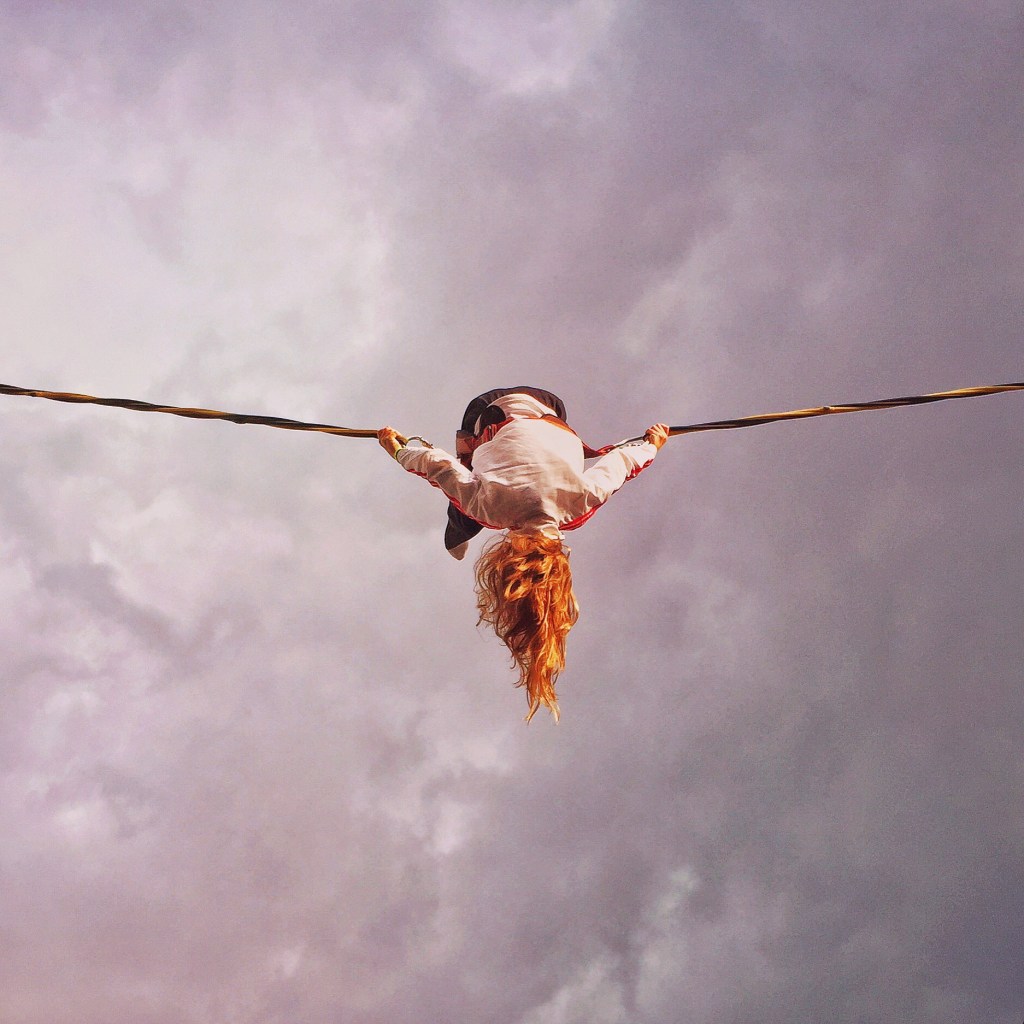
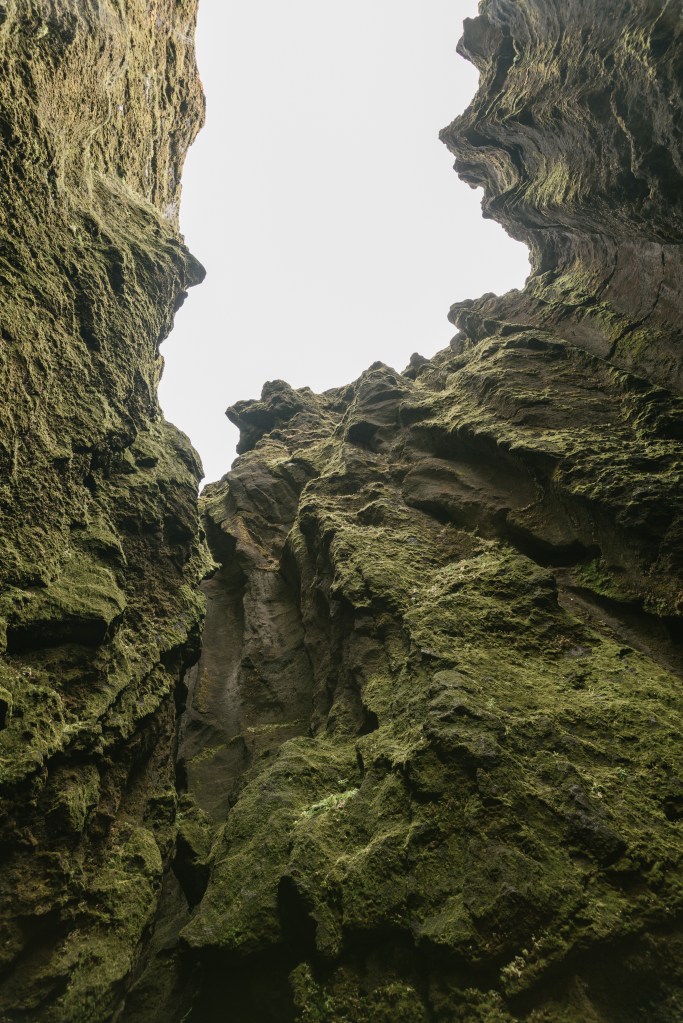
Image Credit Snapwire
Image Credit Nick Bondarev

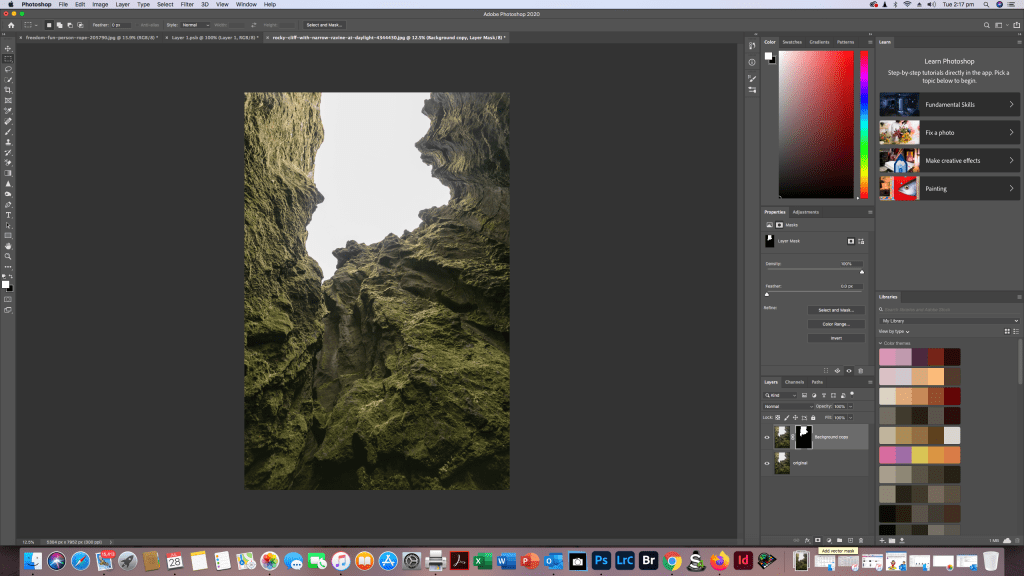
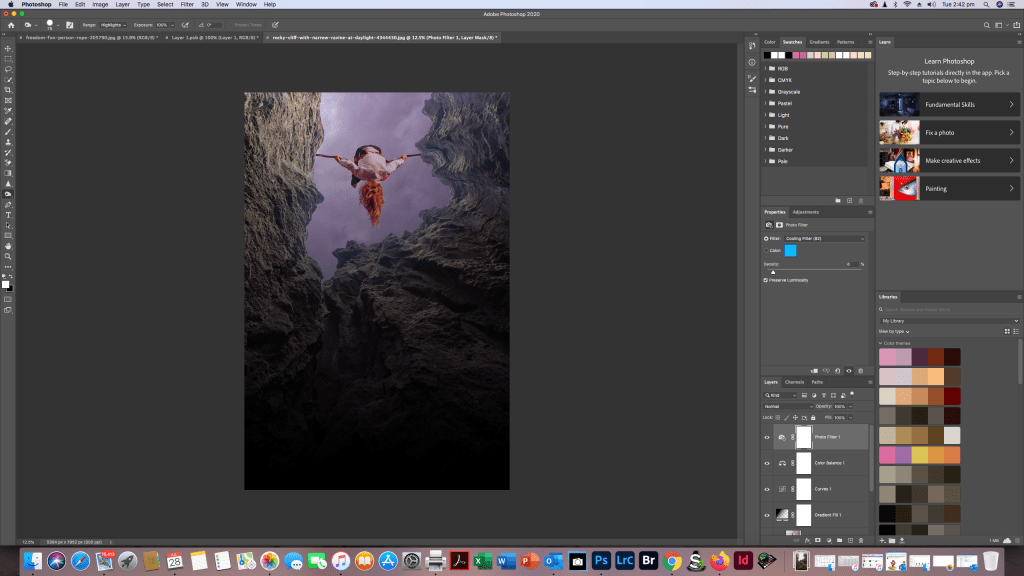
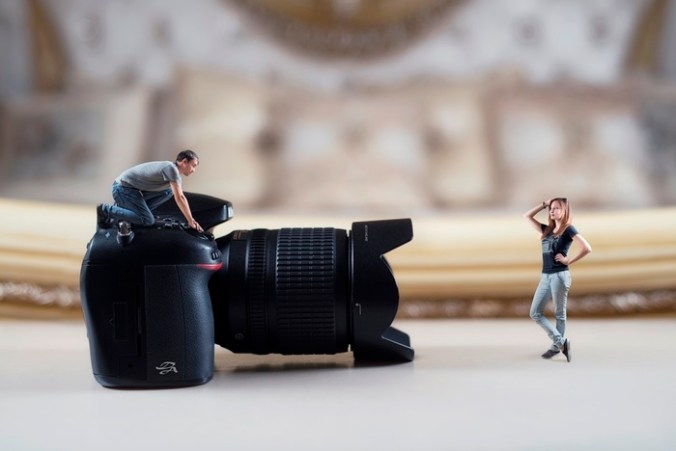
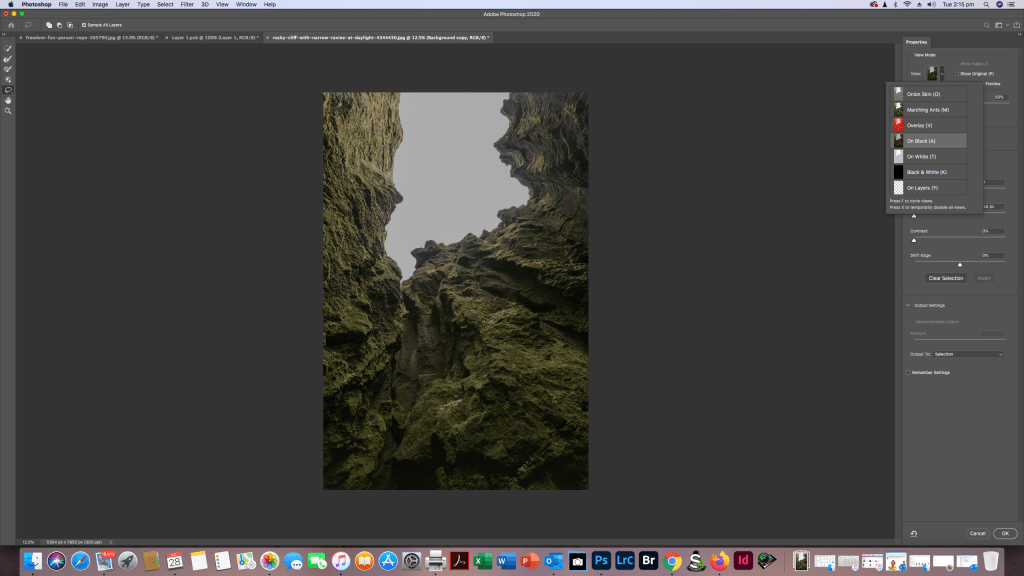
So for my composite image where i am replacing the sk, I found a sky with a girl on a tight rope type thing to create a slightly more interesting composite. Following the same method i used above, First opening the Rocky Cliff/ravine image and making a duplicate layer and then selecting and masking the area i wanted to change being the white boring sky. i did this by going into the properties panel, chose View>On Black and in the mini tool palate i chose the Quick Selection Tool chose brush and adjusted the size and hardness and painted in the sky area to select it and pressed OK. To Make the composite i opened up the tight rope image and selected it and copied it and then went back to my canyon image and pasted it in. I then clipped the tight rope image by right clicking on it and selected the option create clipping mask, i then clicked and dragged the tight rope girl to where i wanted her and added an adjustment layer on the layers palate and selected gradient. in the gradient layer i then chose the Foreground to Transparent gradient switch, before creating another clipping mask layer and made adjustments in contrast brightness etc to come up with my final image. I can probably do a bit more to it but so far I’m pretty happy with my creation.

Concept & Compositing (Part 1) Select and Mask

Activity 9.2: Refine selections with Select and Mask

Using an image of your choice, begin experimenting with Photoshop’s Select and Mask command to refine selection edges. 

If you are unable to find any suitable images in your library, stock photo sites Unsplash and Pexels provide free, high quality images.

Activity 9.2: Refine selections with Select and Mask

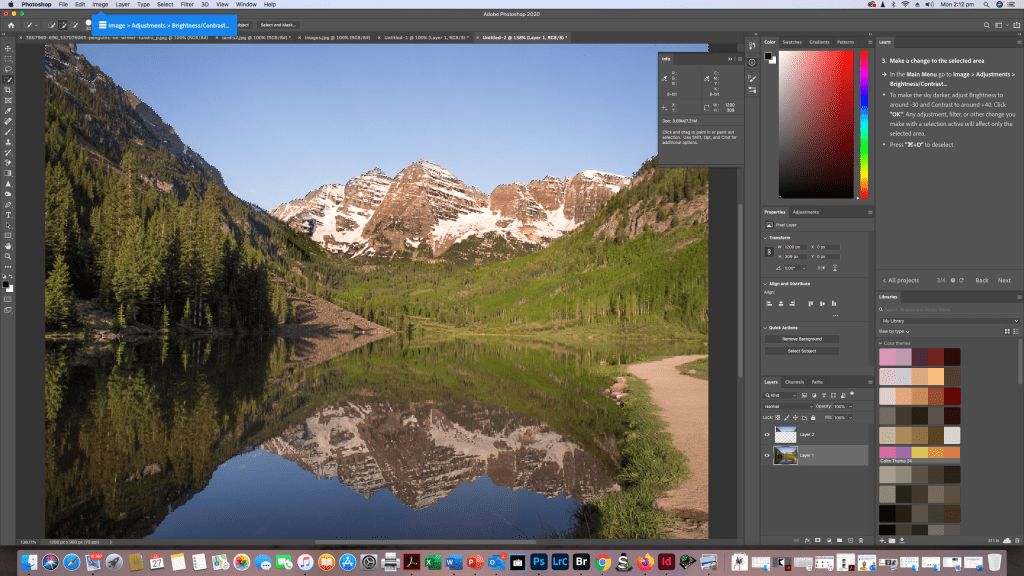
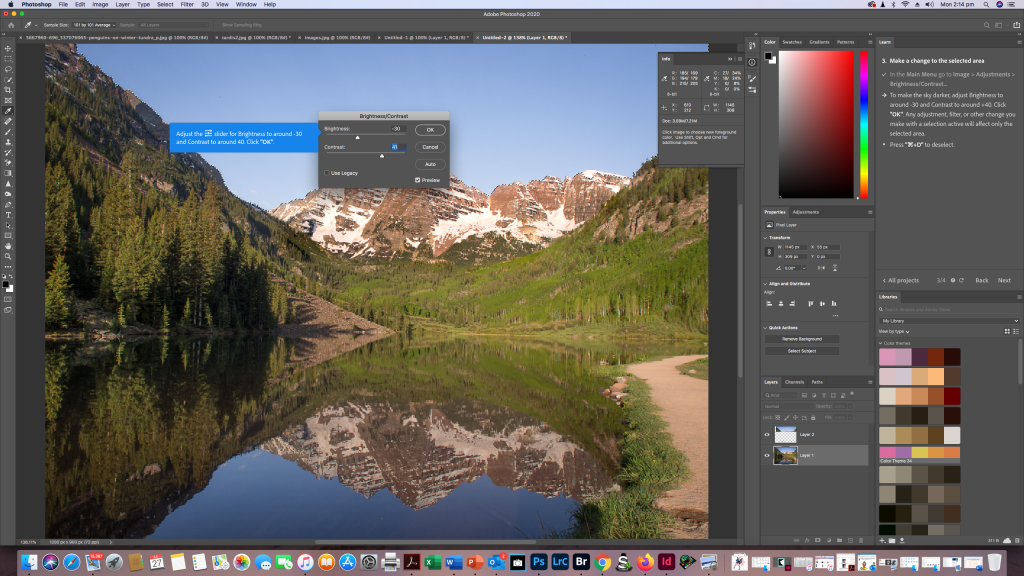
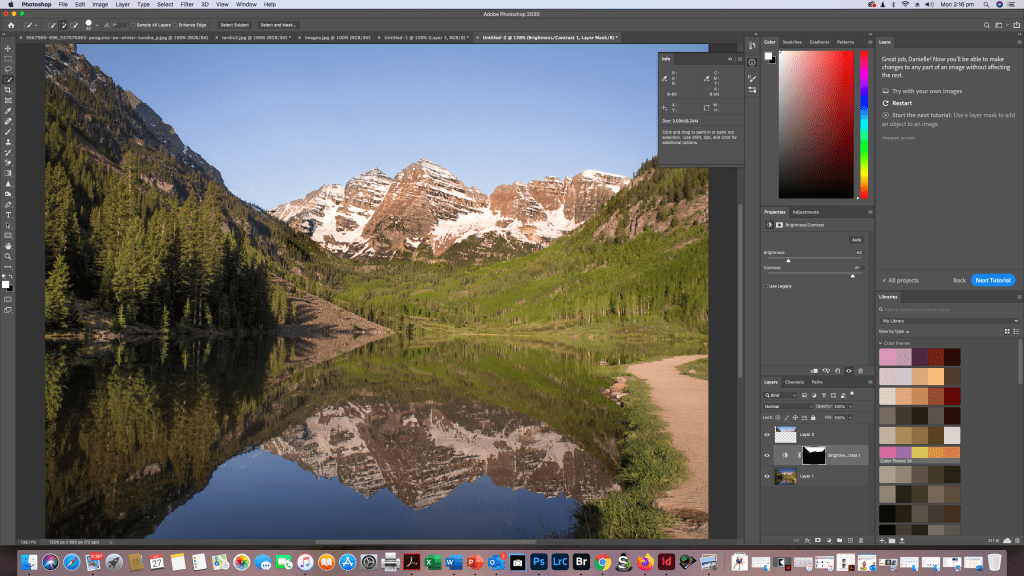
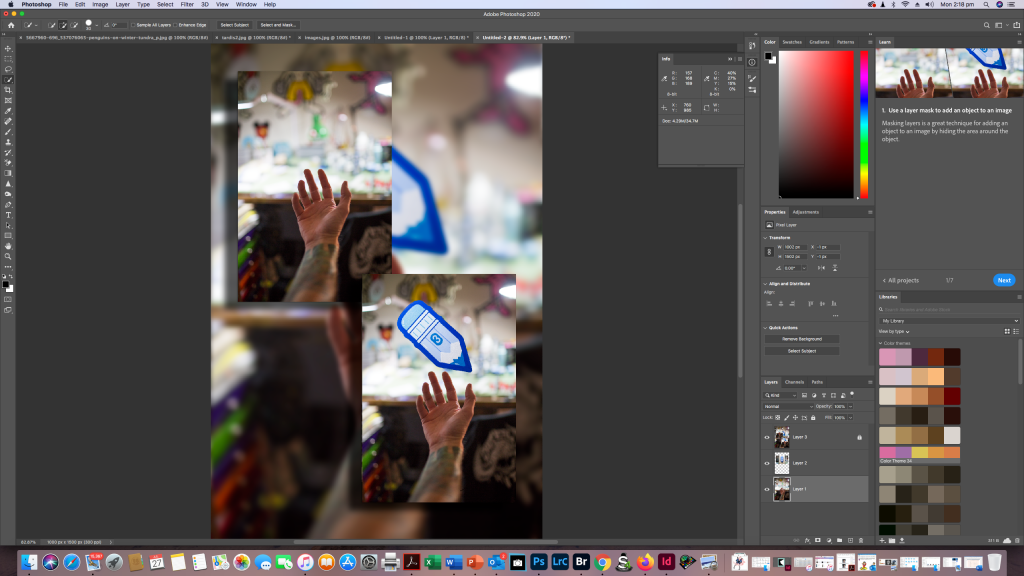
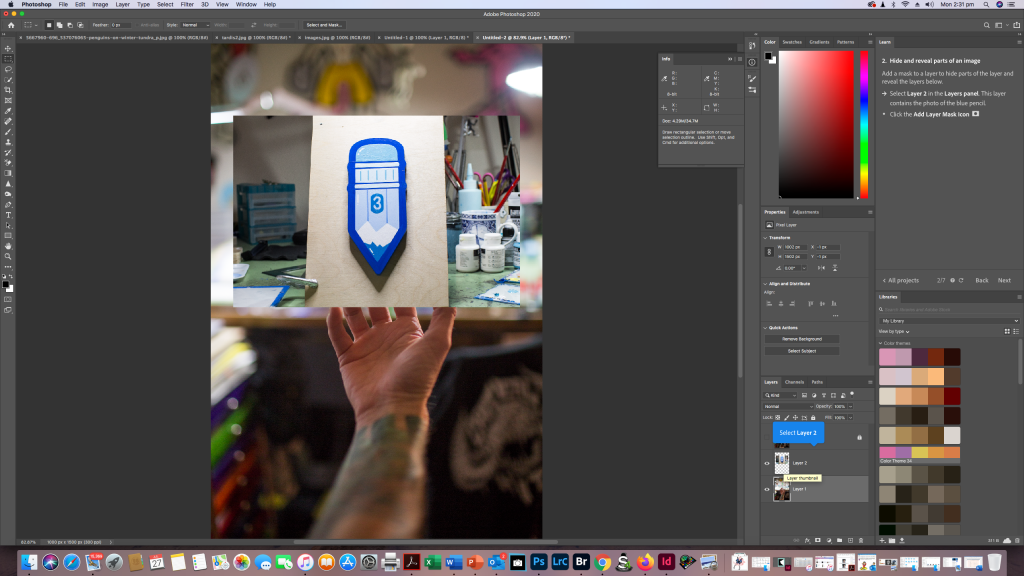
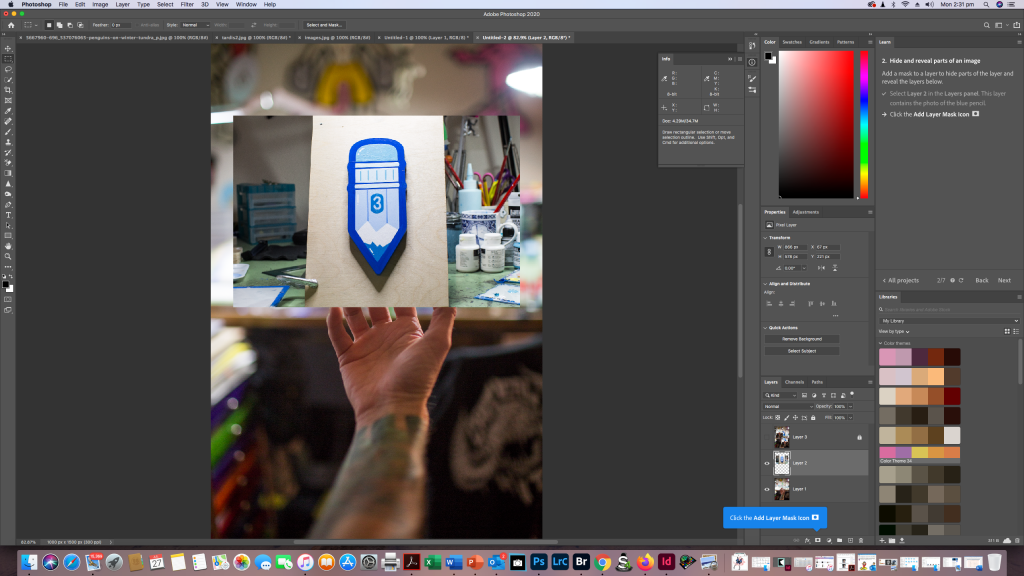
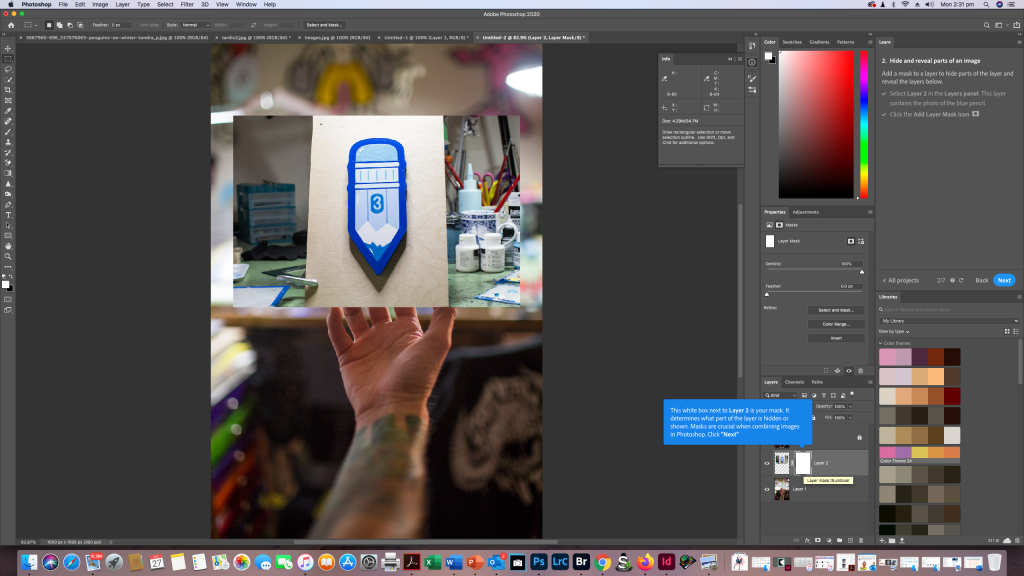
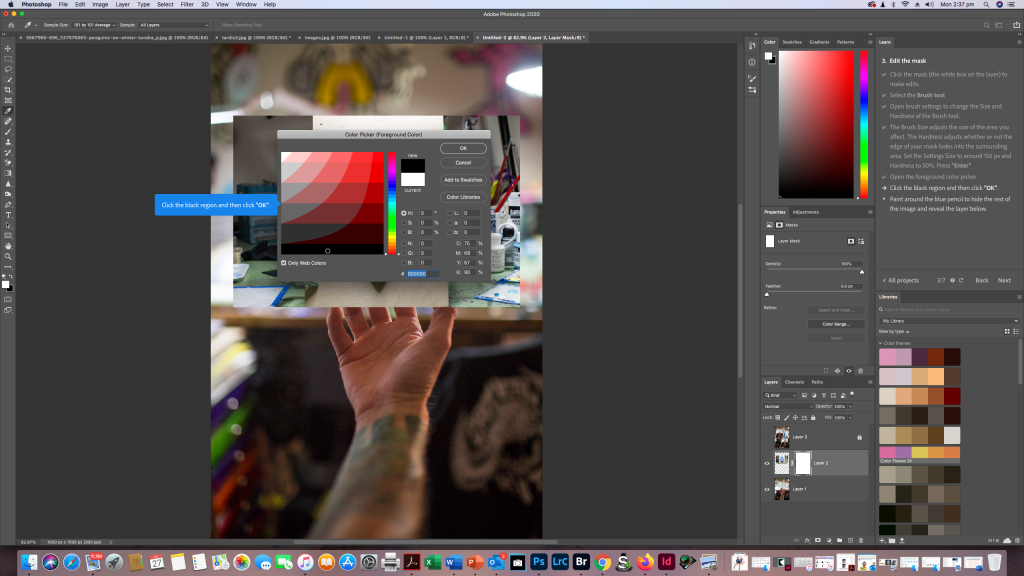
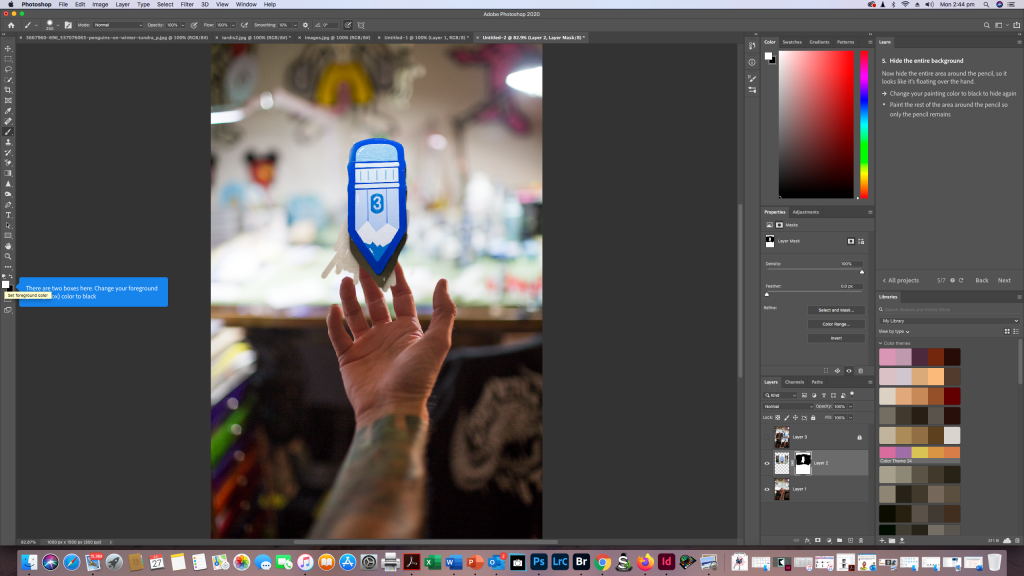
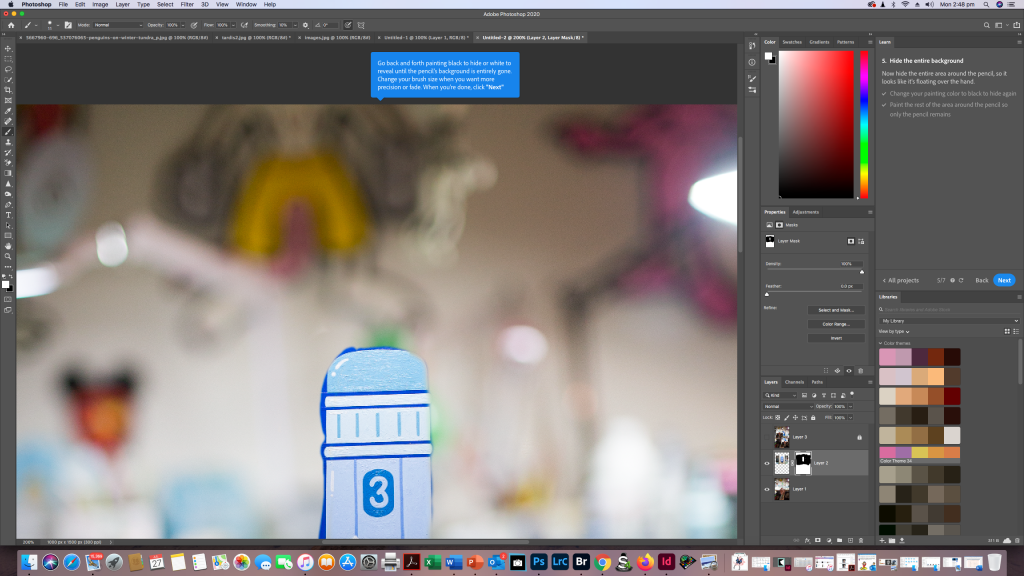
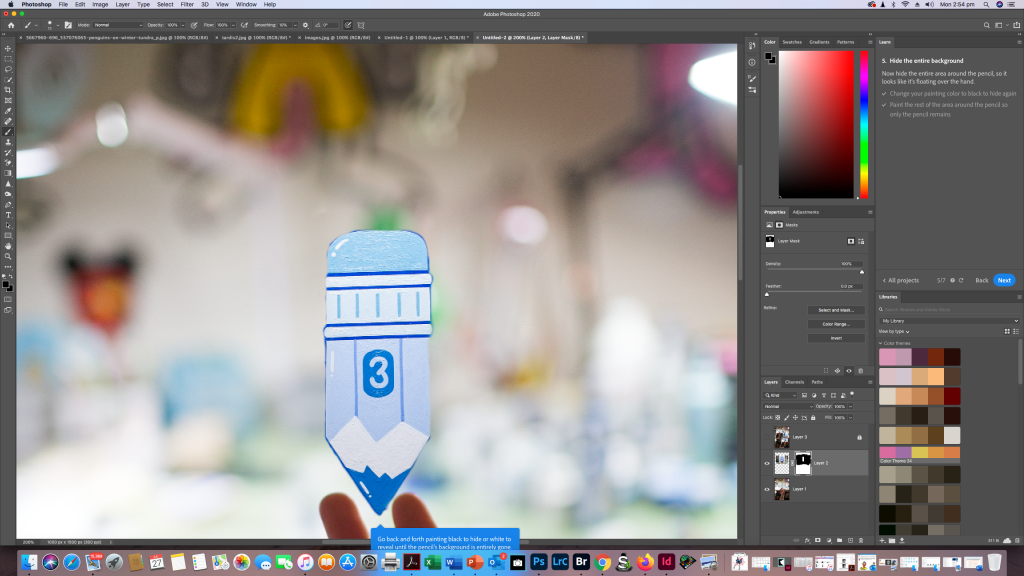
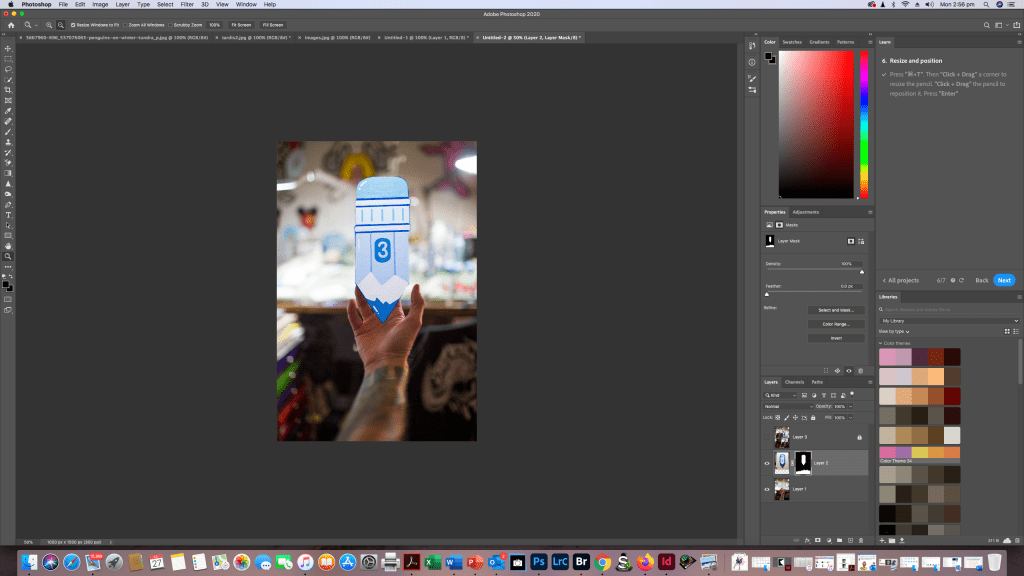
So for this exercise I decided to go and look at the Photoshop tutorial section in my Photoshop app on my Mac. I found it pretty easy and simple to follow and it’s a great tool for learning simple little useful Photoshop techniques. I’ve screen shotted for you so you can see where to find the tutorials and how easy they are to use then i’ll also go into my own images and use the skill I’ve just “learned”

Selection Tool

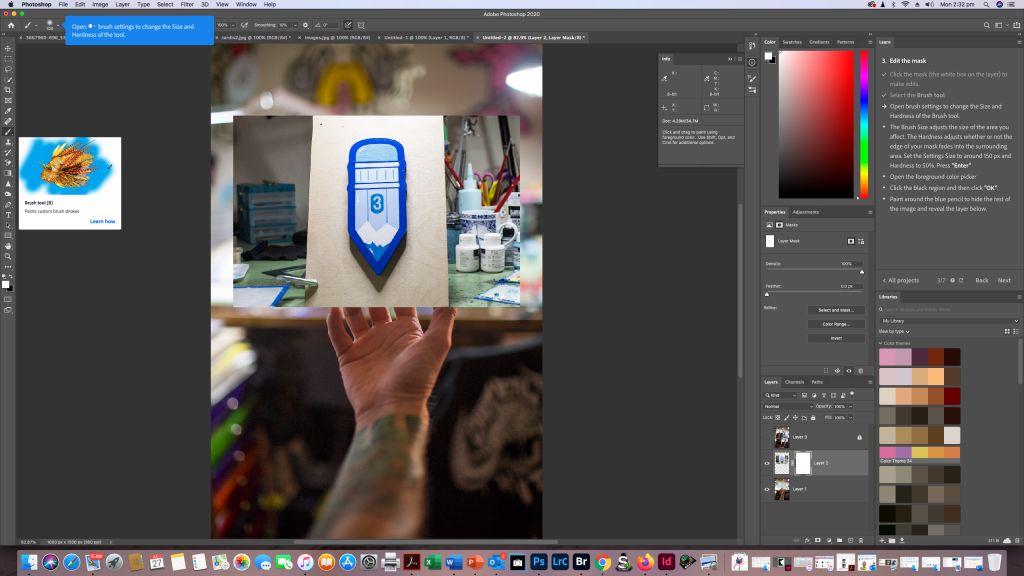
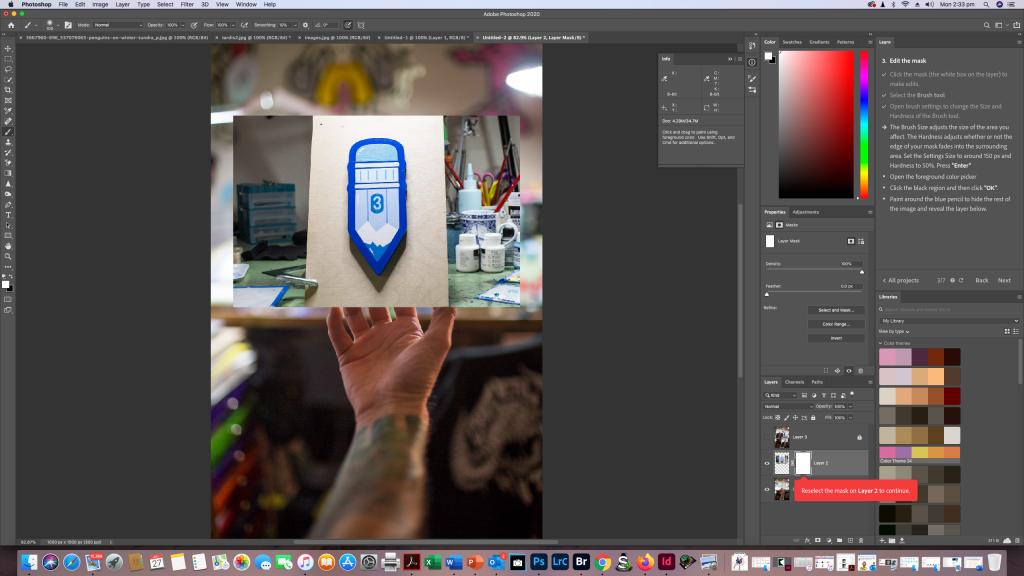
Masking

Again I’ve done the tutorial and screen shotted step by step of me following the tutorial

Over the next few weeks I will be adding more into this as i get more comfortable manipulating my own images in Adobe Photoshop.

Concept & Compositing – Developing a Concept

Activity 9.1: Develop a composite concept

Develop a concept for your third and final assessment for this subject (see brief for furtherdetails). Discuss your concept (including sketches, inspiration etc.) on your process blog.

Develop a composite concept

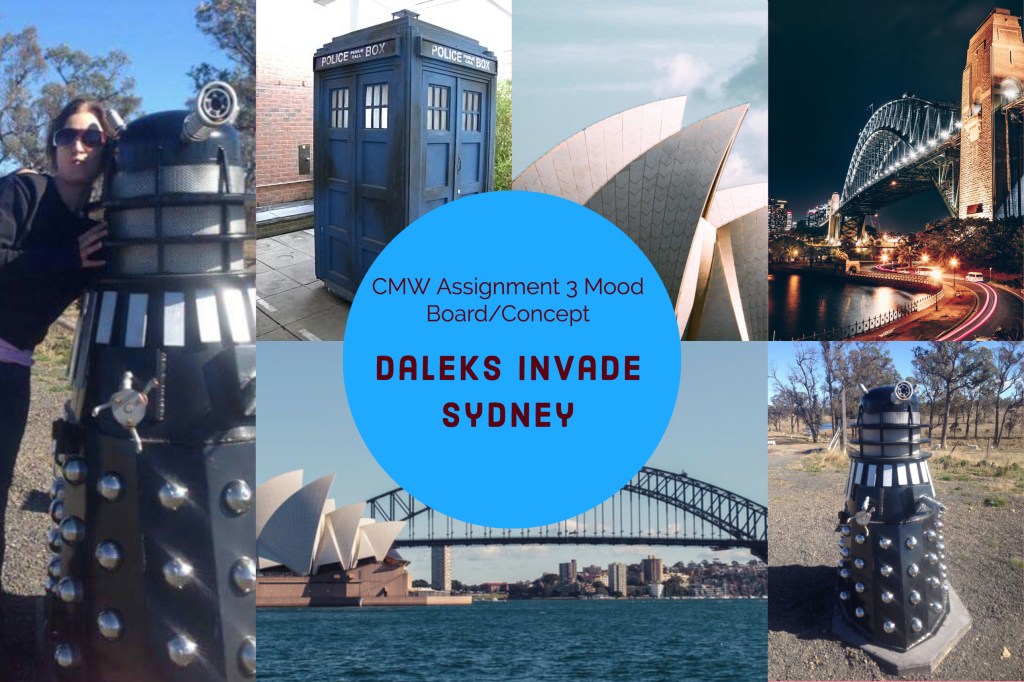
Anyone who knows me will know I’m a massive doctor who nut. So it wasn’t hard to come up with a concept for a composite image.

Here’s my mood board, the Dalek images are my own and taken at at property gate where this magnificent fellow stands, between Glen Innes and Tenterfield in NSW, the rest are Abode Stock Images

So far this is the concept that will be the inspiration for my final CMW assignment in colour management and compositing.

Create a watermark

Activity 7.1: Create a watermark

Watermarking your photos is a simple way of protecting your images online.

Your first task for this module is to create a watermark in Lightroom Classic, which you can then use when exporting images.

PRO TIP: Type Opt+G (Mac) or Alt+0169 (Windows) to quickly and easily pull up the copyright symbol.

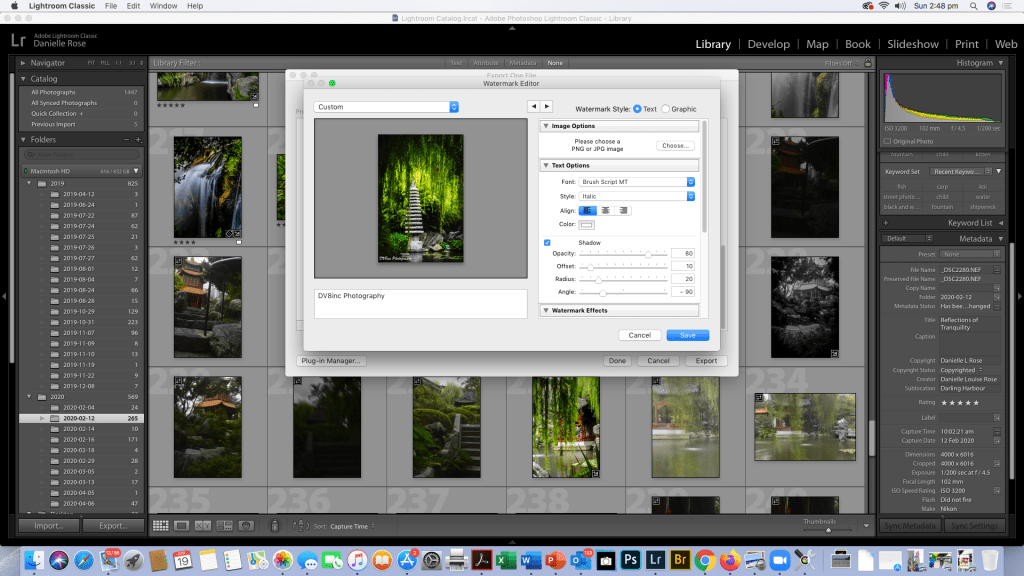
Creating a watermark in Lightroom is simple.

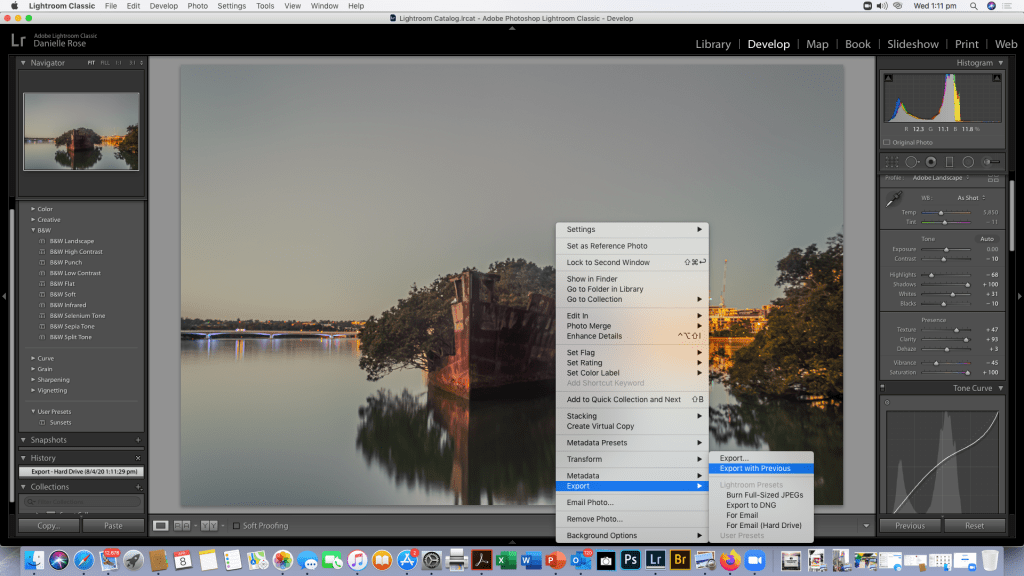
Click on export, scroll down to watermark, click edit watermark once you’ve decided how it should look click save.

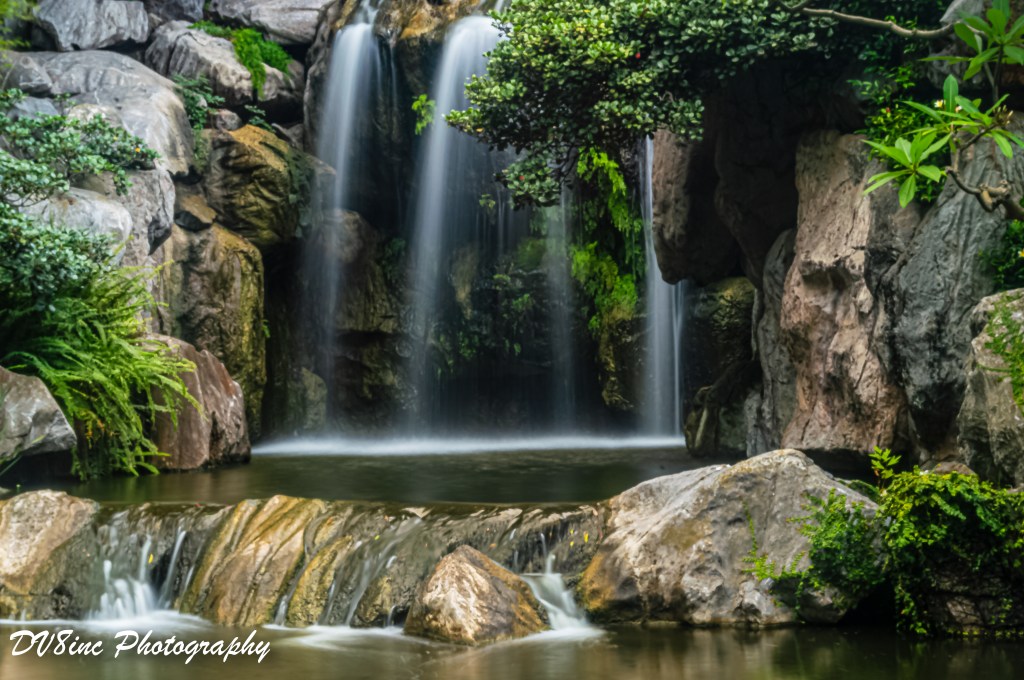
Waterfall Chinese Gardens Of Happiness Darling Harbour Sydney

Retouching and Local Adjustments in Lightroom Part 2

Retouching DNG or Digital negative files / RAW files is easier in Lightroom than retouching JPEGs/JPG files.

The activity is as follows

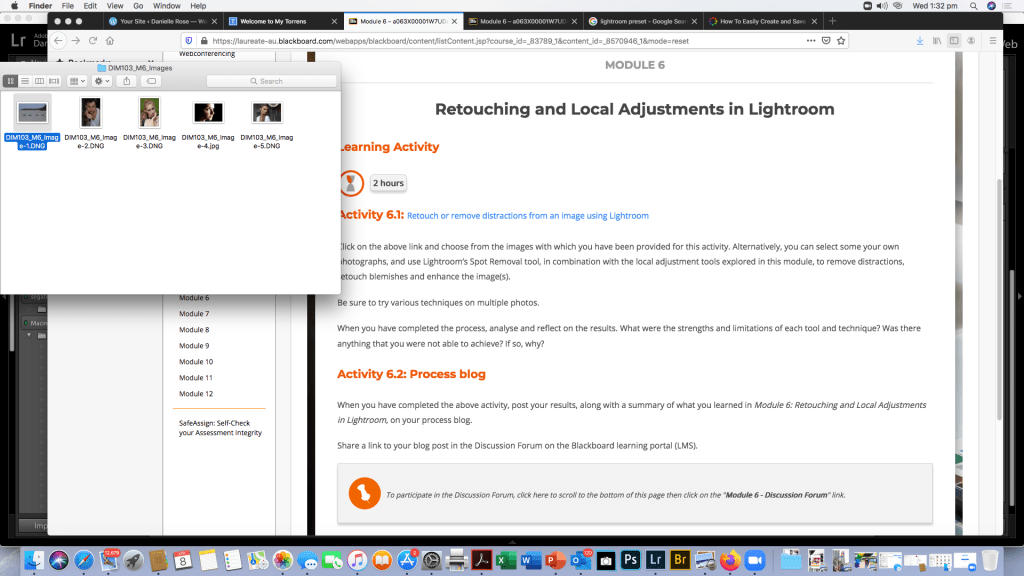
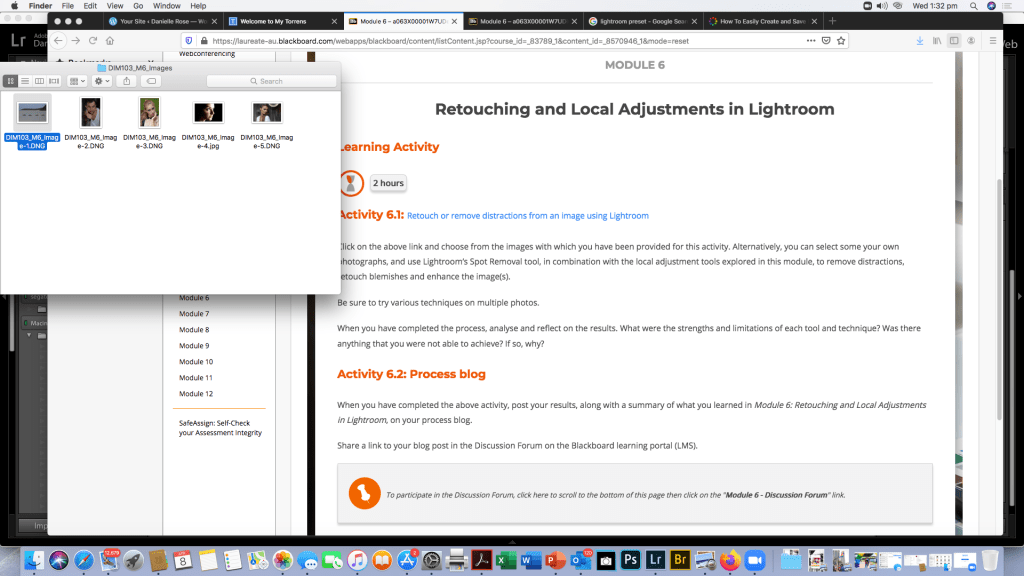
Activity 6.1: Retouch or remove distractions from an image using Lightroom

Click on the above link and choose from the images with which you have been provided for this activity. Alternatively, you can select some your own photographs, and use Lightroom’s Spot Removal tool, in combination with the local adjustment tools explored in this module, to remove distractions, retouch blemishes and enhance the image(s).

Be sure to try various techniques on multiple photos.

When you have completed the process, analyse and reflect on the results. What were the strengths and limitations of each tool and technique? Was there anything that you were not able to achieve? If so, why?

Activity 1a

Last time I chose to edit the JPEG portrait and converted it to black and white because that’s my style and I felt it looked better and had less distractions in the image.

This Time I’m going to edit another portrait and a landscape image from the files provided for the class to use.

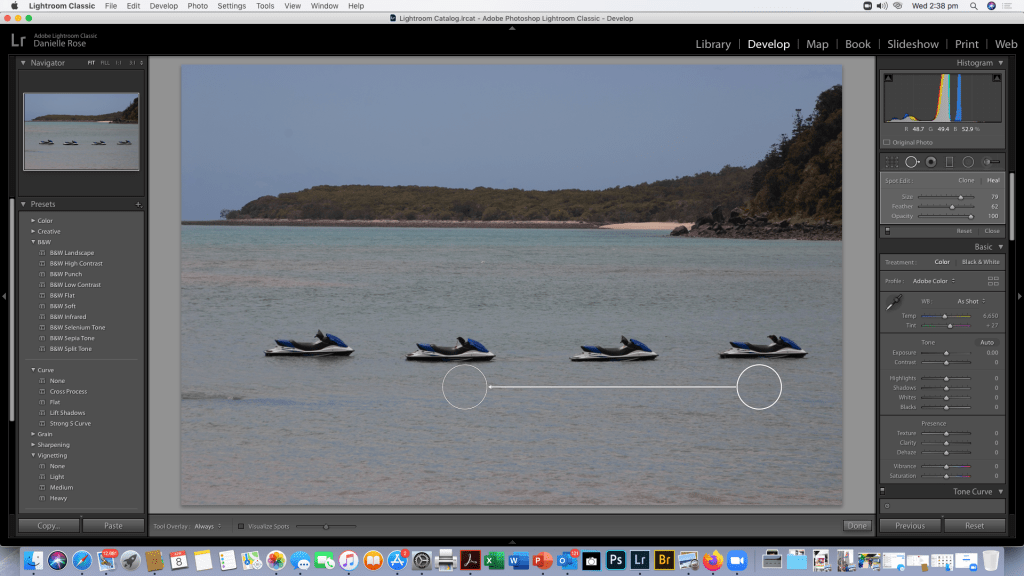
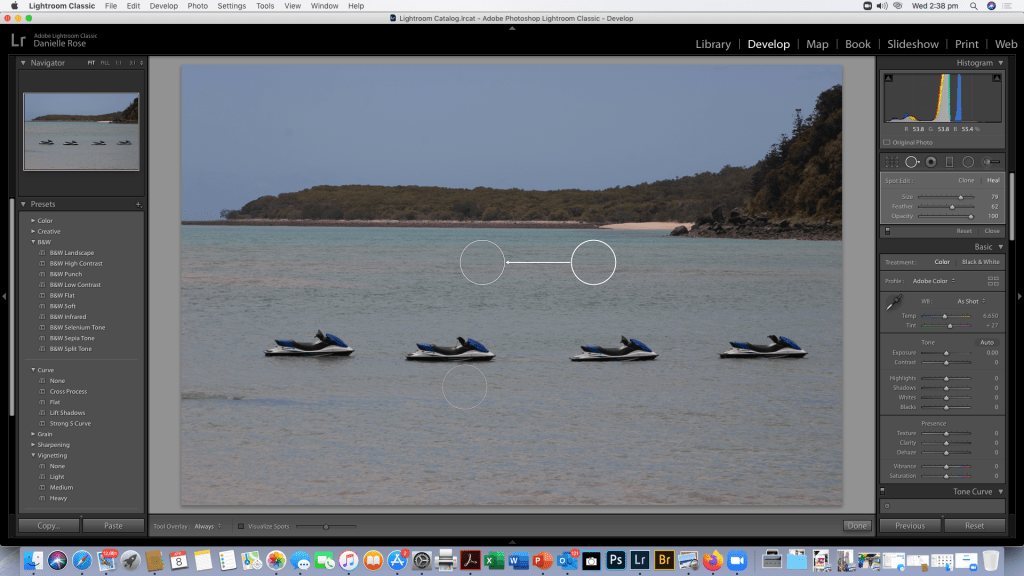
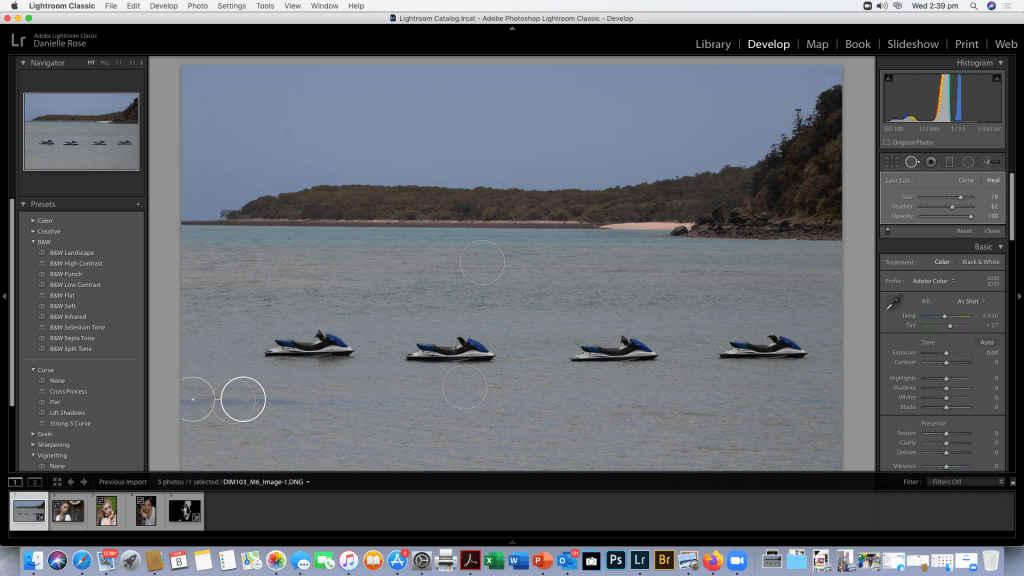
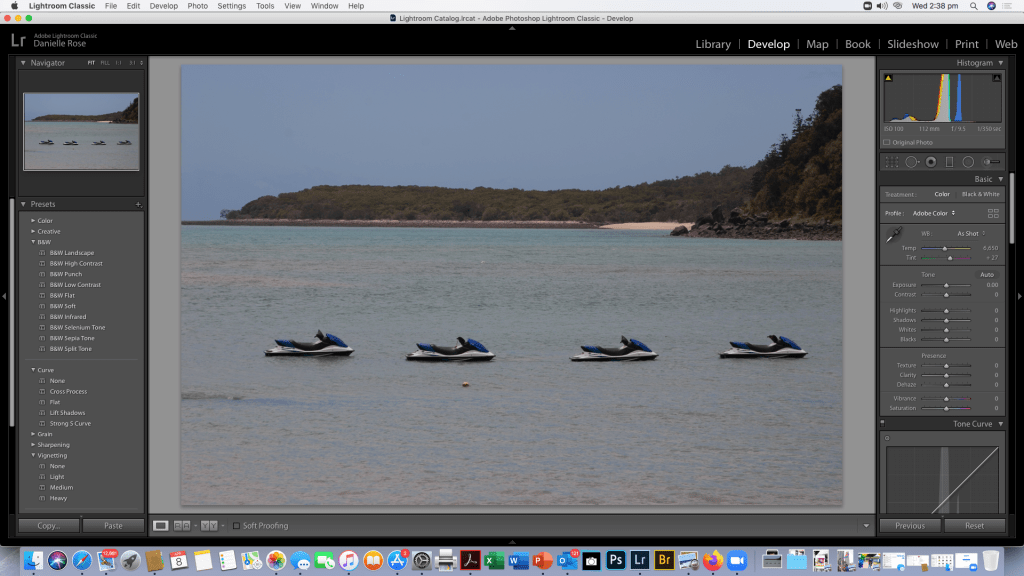
The first image I’m editing is the Landscape with the jet ski’s there a few things in the image I find distracting so I’m going to use the spot removal tool to get rid of the things that are annoying me in the image.

After removing the floating bits and aspects of the waves i didn’t like, i will now have a play with slider and presets to enhance the image to my preferences and make the image pop.

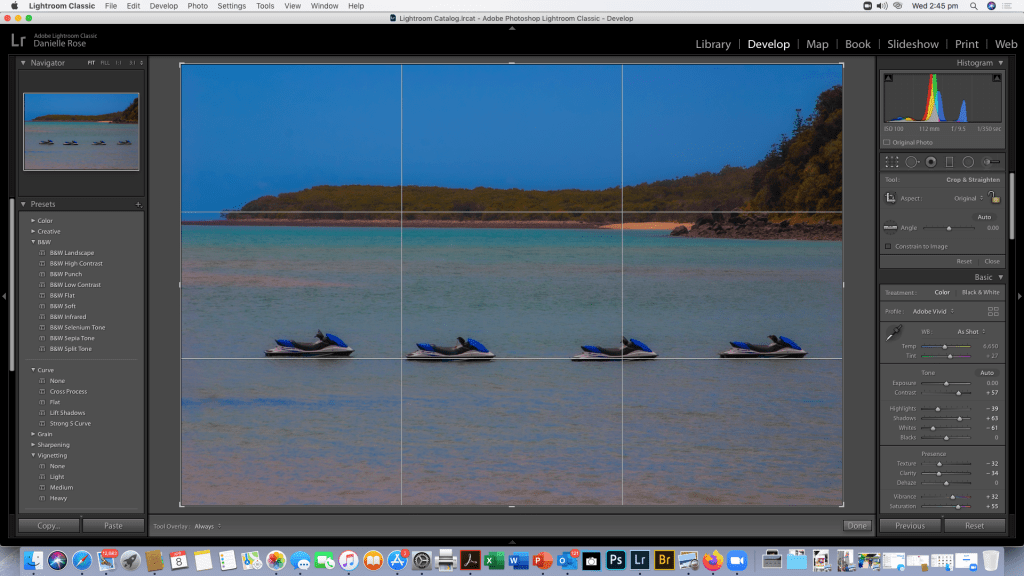
As you can see I’ve had a play with the Colour and Tone settings as well as the Presence to make the colours more vibrant.

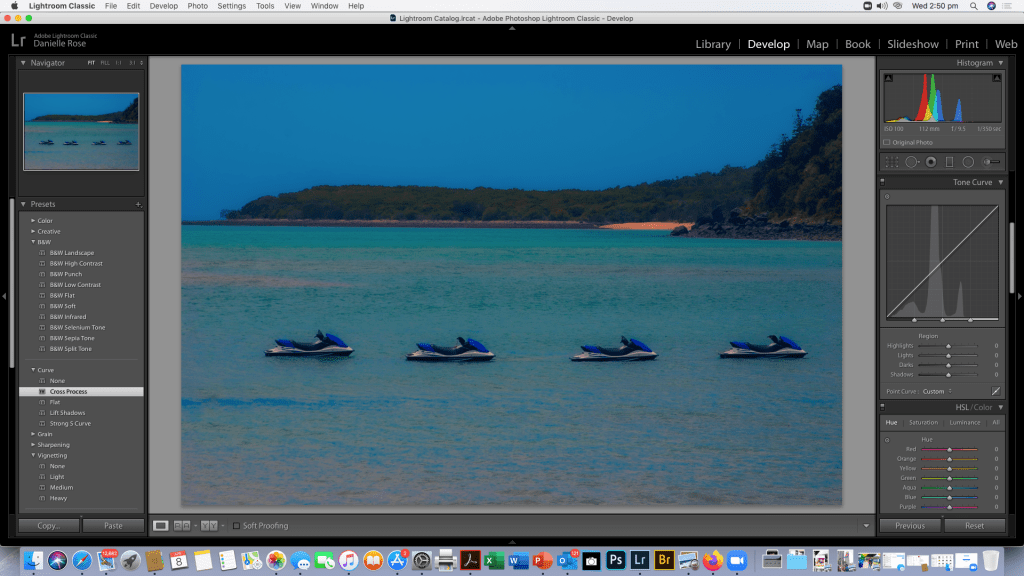
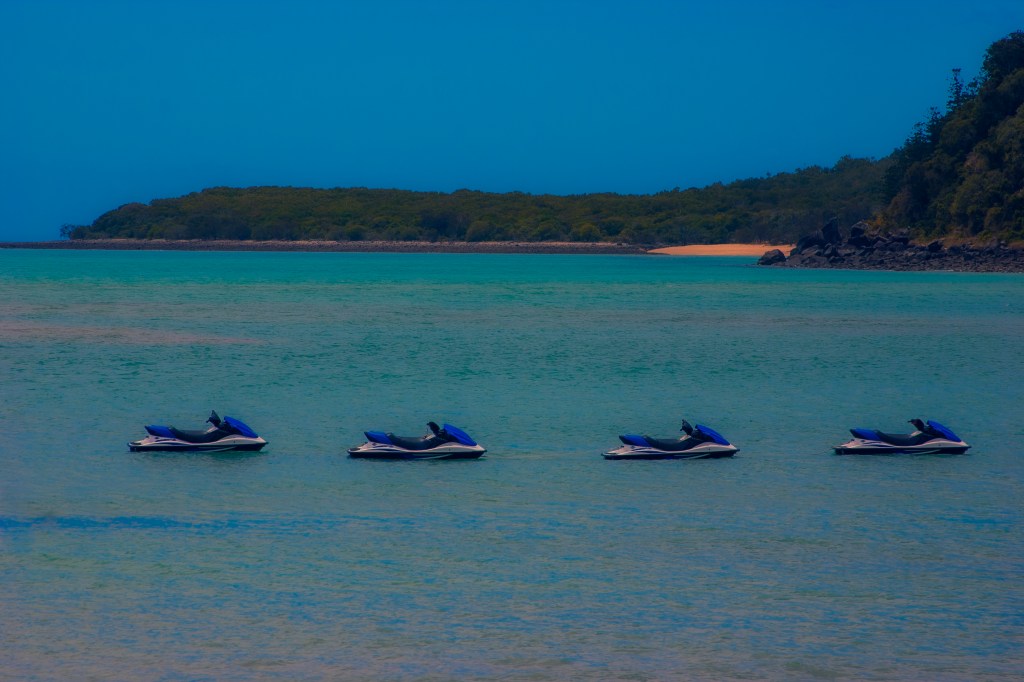
I’ve also brought up the grid to see if i want to crop the image and to see if my horizons are strait. At this point I’m also thinking about presets for the Tone Curve or if I’ll manually adjust it and what kind of impact I want the final image to have. I’m thinking I’ll go with a cross process tone curve as per the image below.

Activity 1b

For part two I’m going to chose one of the other portraits.

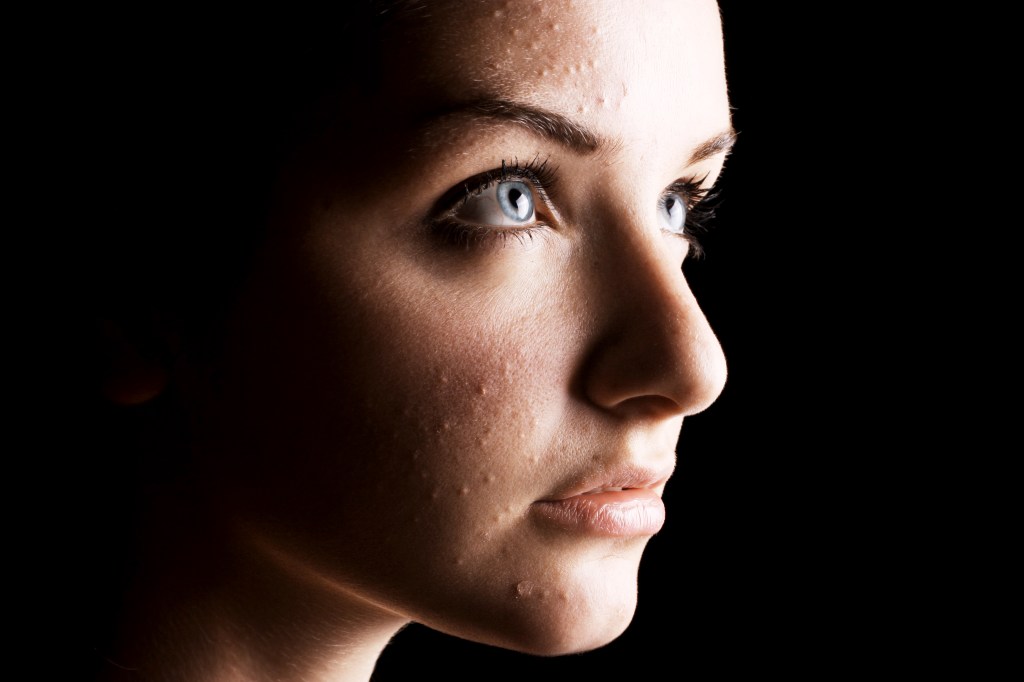
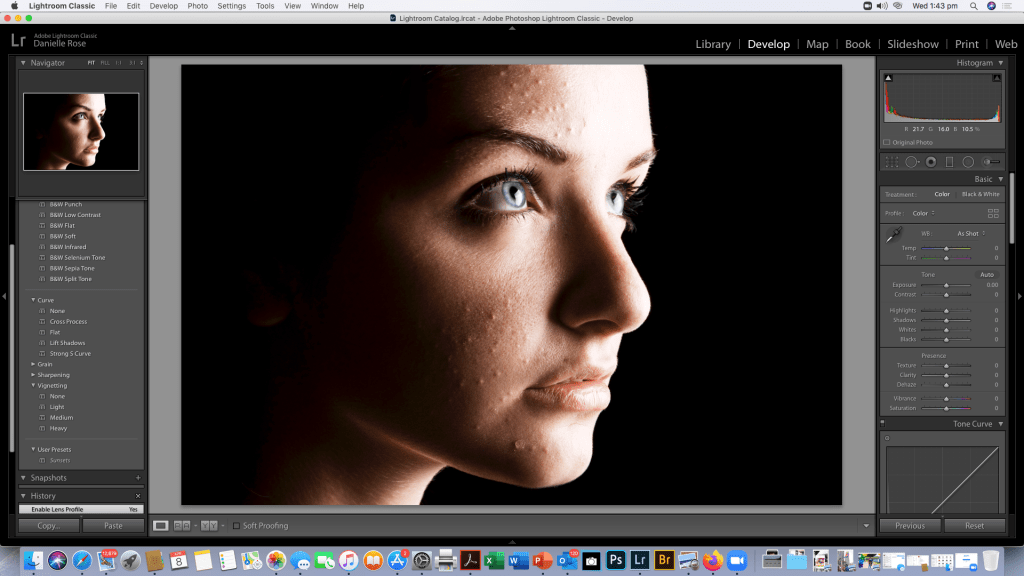
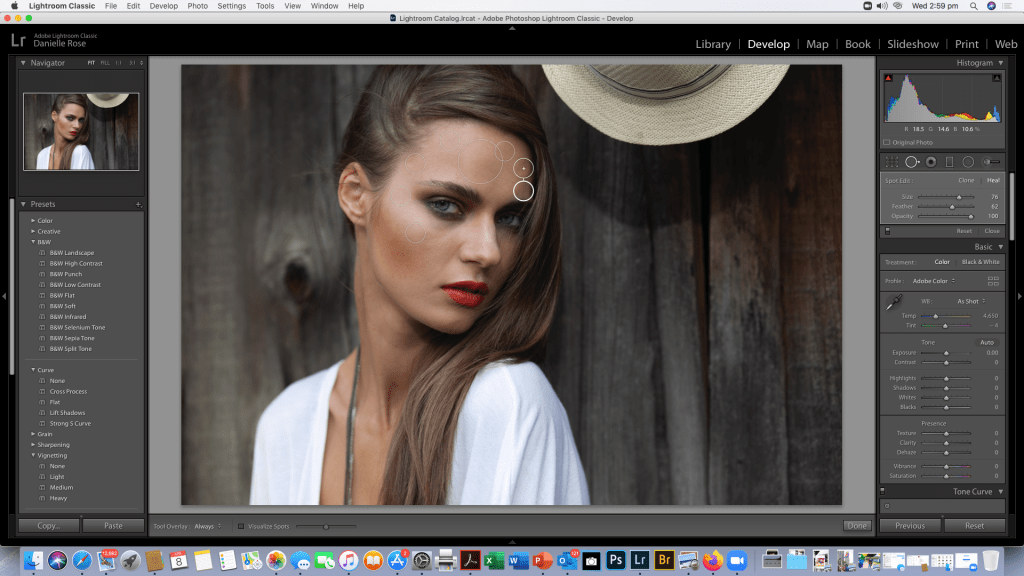
This is the image I’ll start with and I’ll see what adjustments with skin tone and spot removal/healing I need to do.

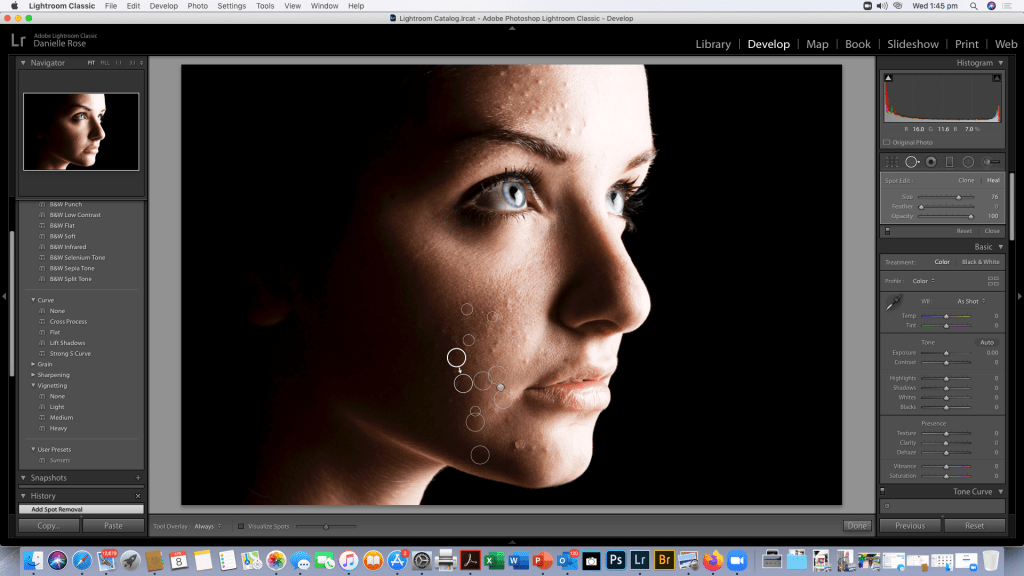
As you can see i have identified a few areas that needed some spot removal but her skin had a lot less acne than the JPEG image model in PART A

https://danielle.photo.blog/2020/04/08/retouching-and-local-adjustments-in-lightroom-part-1/

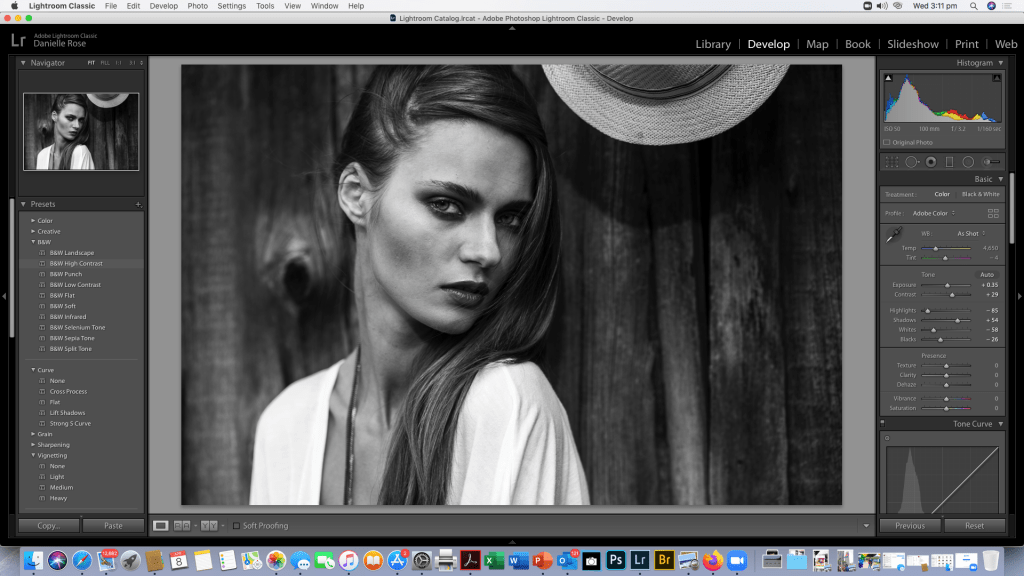
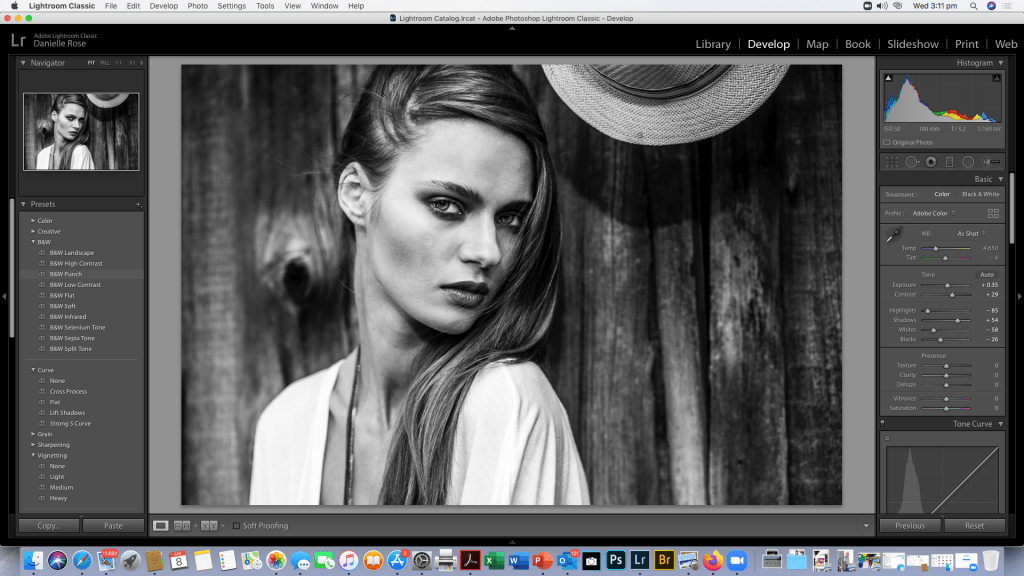
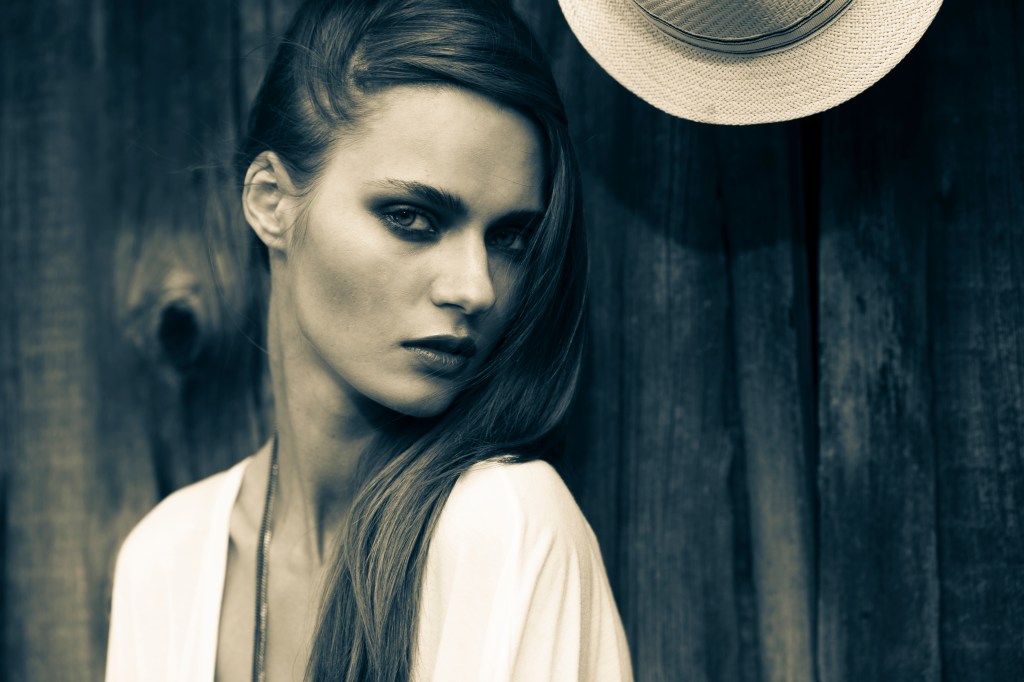
After finishing healing the image I’ve played with the sliders a little to see how much i want to adjust the exposure and contrast and the highlights on this image. Again I’m thinking of converting the image to black and white because that’s my signature style with portraits. So i’ll screen shot a few different edits before i upload my final edit of this image. I find the hat a little distracting and purposeless in colour and if this was a photo shop exercise I’d probably create a mask and remove it if I couldn’t find a preset I liked or created in Lightroom.

As you can see different preset filters give the portrait a slightly different feel and brig out different tones in the image.

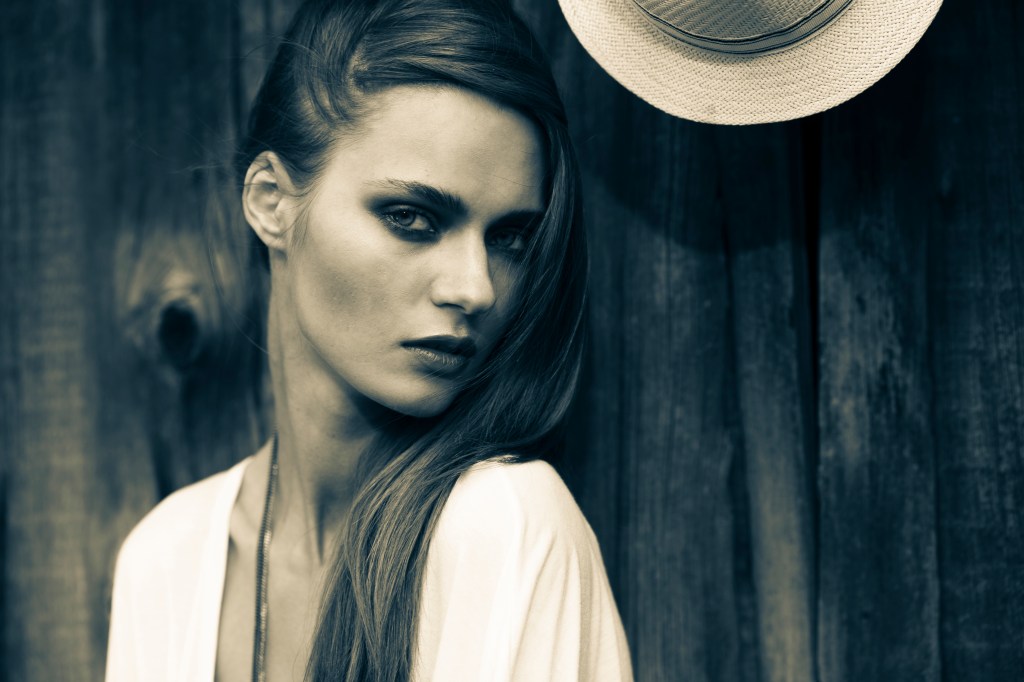
The Final Image ……

All of a sudden i like the Hat !

The difference in editing a DNG and a JPG is huge and you can compare the quality of the images side by side. JPEG editing is very limited which is why you should always shoot in RAW.

Retouching and Local Adjustments in Lightroom Part 1

Activity 6.1: Retouch or remove distractions from an image using Lightroom

Click on the above link and choose from the images with which you have been provided for this activity. Alternatively, you can select some your own photographs, and use Lightroom’s Spot Removal tool, in combination with the local adjustment tools explored in this module, to remove distractions, retouch blemishes and enhance the image(s).

Be sure to try various techniques on multiple photos.

When you have completed the process, analyse and reflect on the results. What were the strengths and limitations of each tool and technique? Was there anything that you were not able to achieve? If so, why?

Retouching an Image in Lightroom

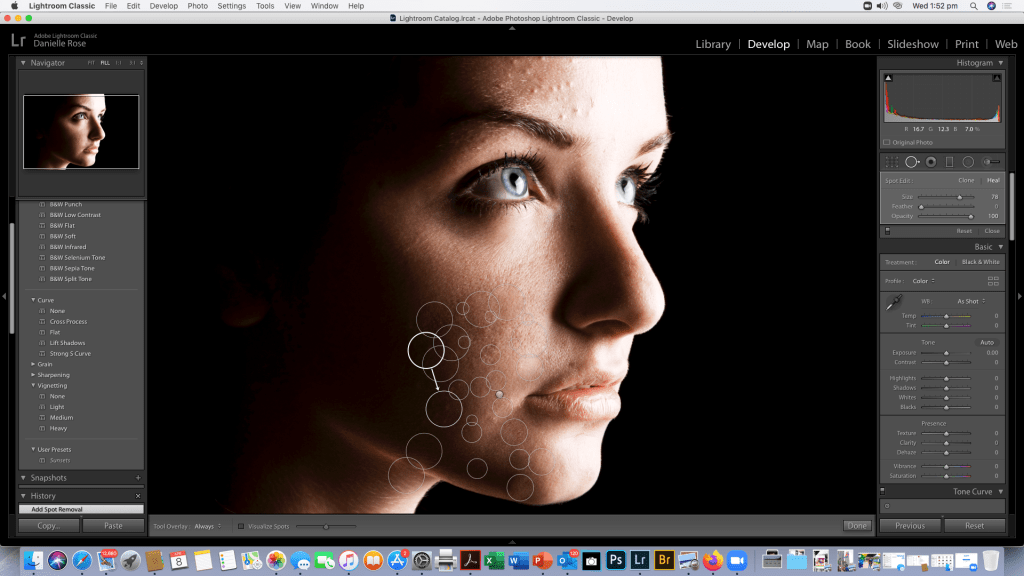
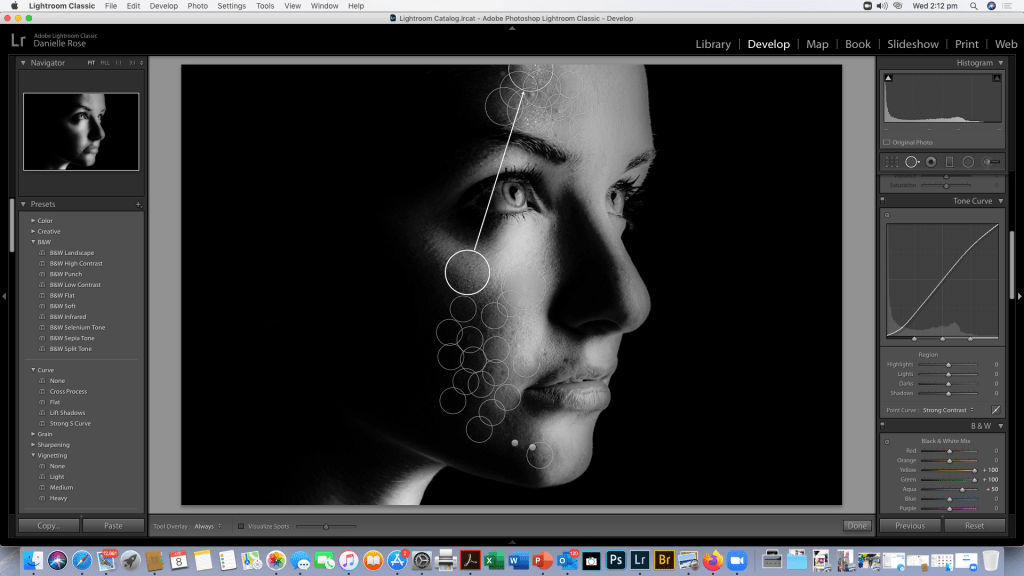
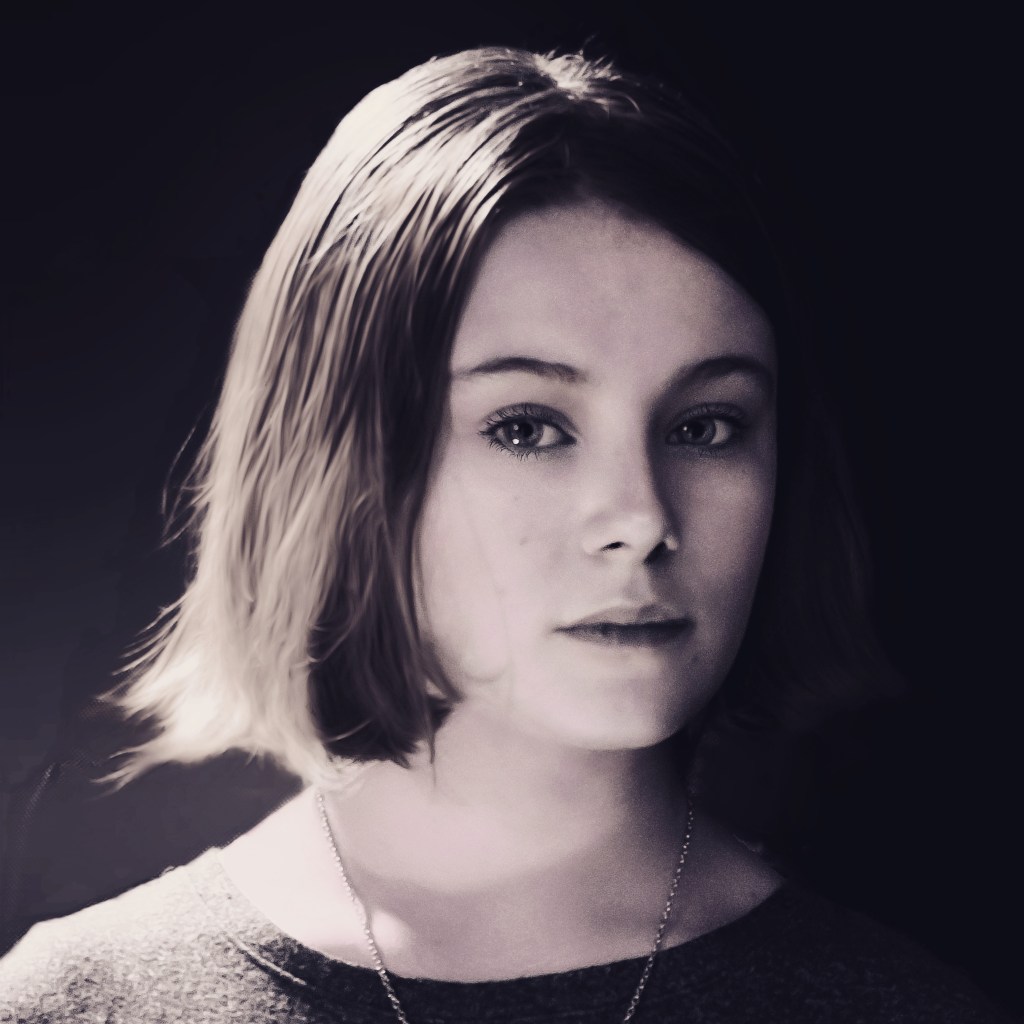
So for this exercise the first image I’ve chosen is the above portrait from the files given to us for the exercise, and I will be removing the blemishes from the models face. This file is a JPG file so there is a limited amount of editing i can do do enhance the quality but i can use the heal spot tool to remove blemishes.

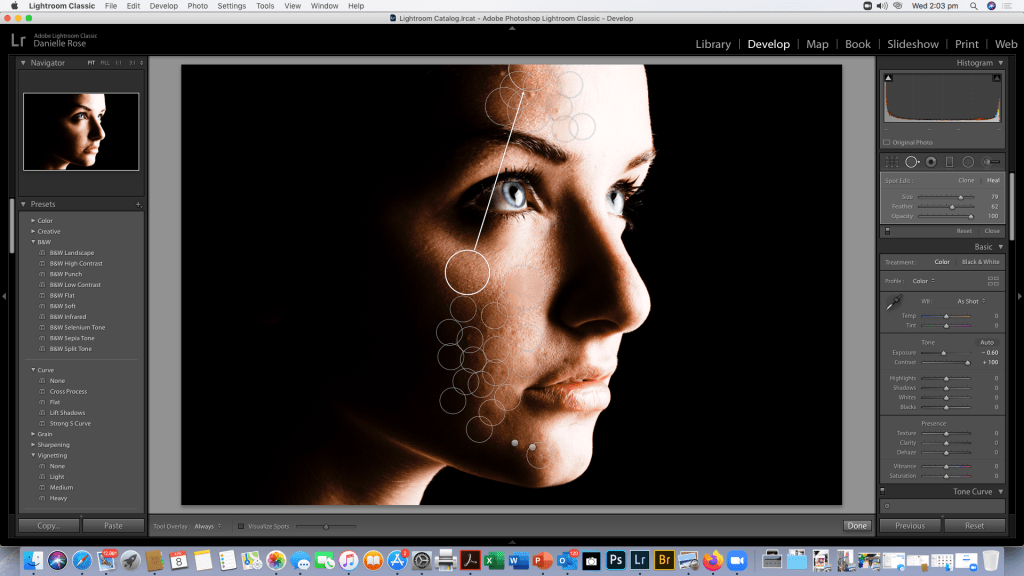
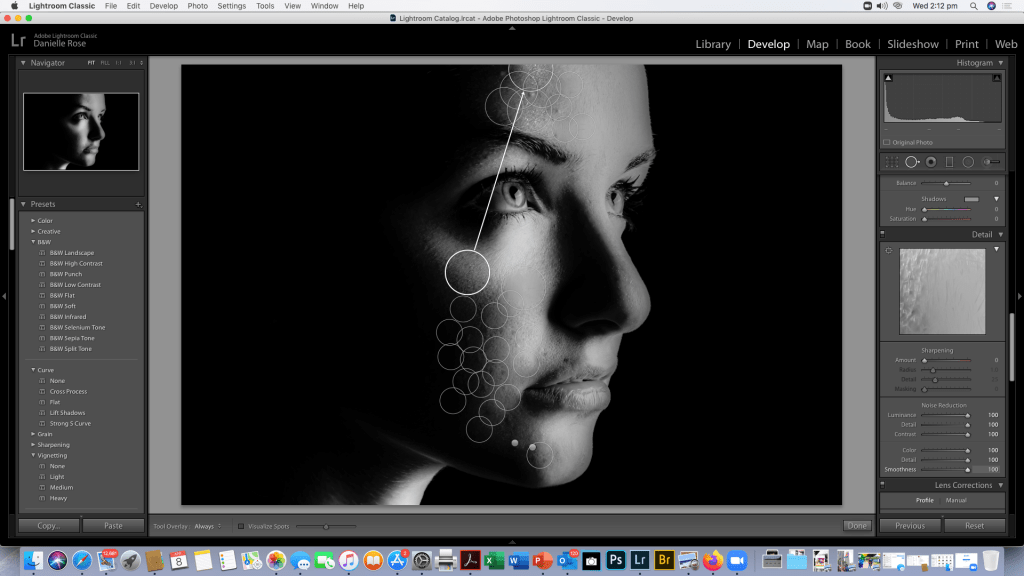
Being a Jpeg there are limitations to the adjustments you can makeand the changes are noticable with the noise in the image as adjustments are being made which makes the healing tool grab some crazy pigments and it’s limited to how may blemishes on her skin i can retouch, normally i would do this in Photoshop and create a mask and additional layers, so to take the noise distraction away I had a little play with filters.

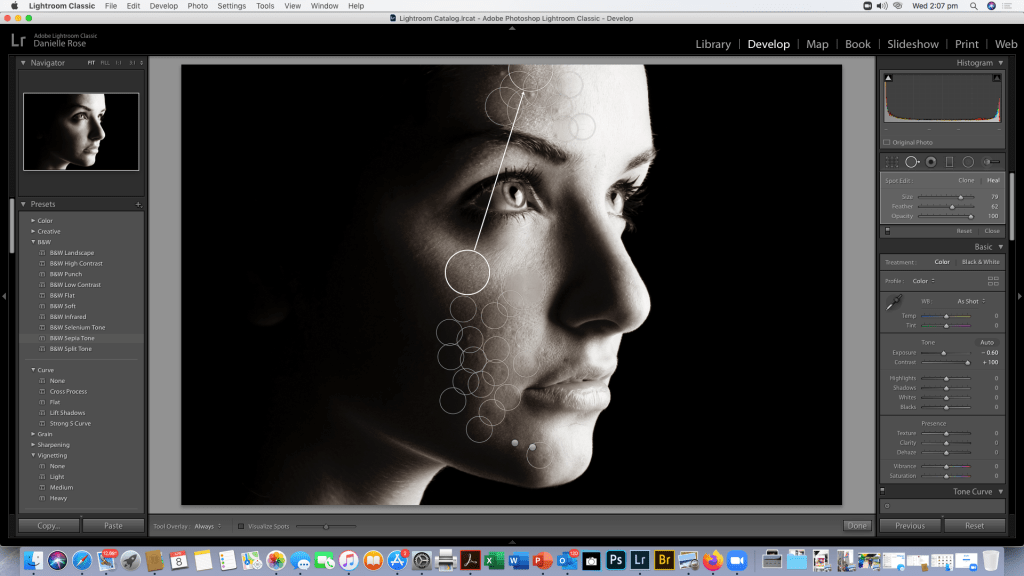
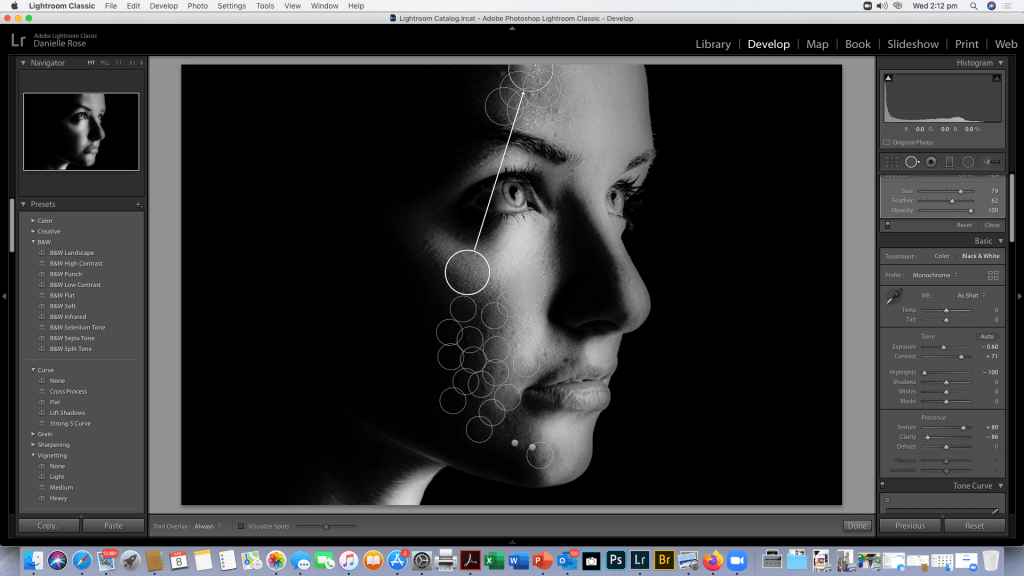
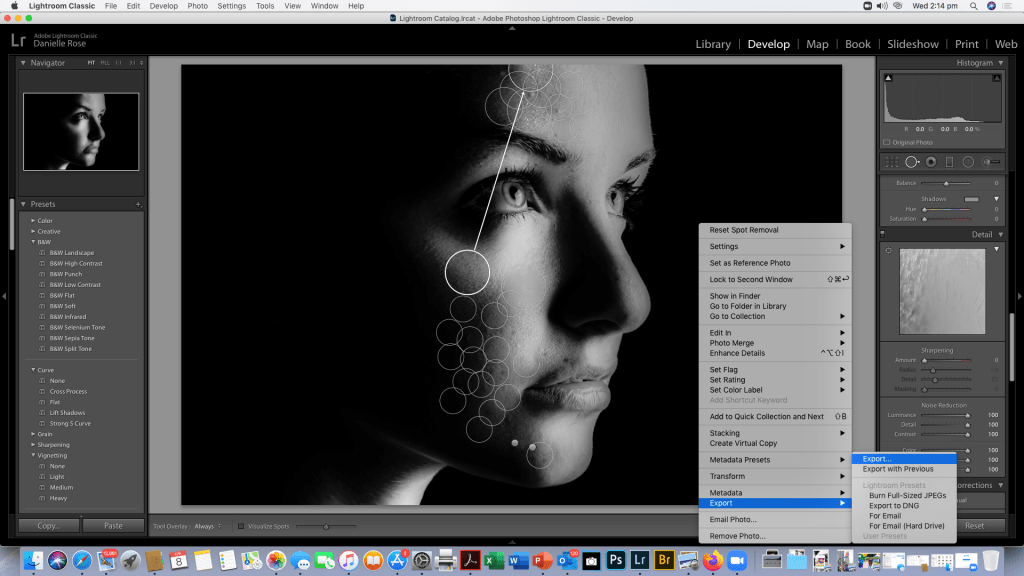
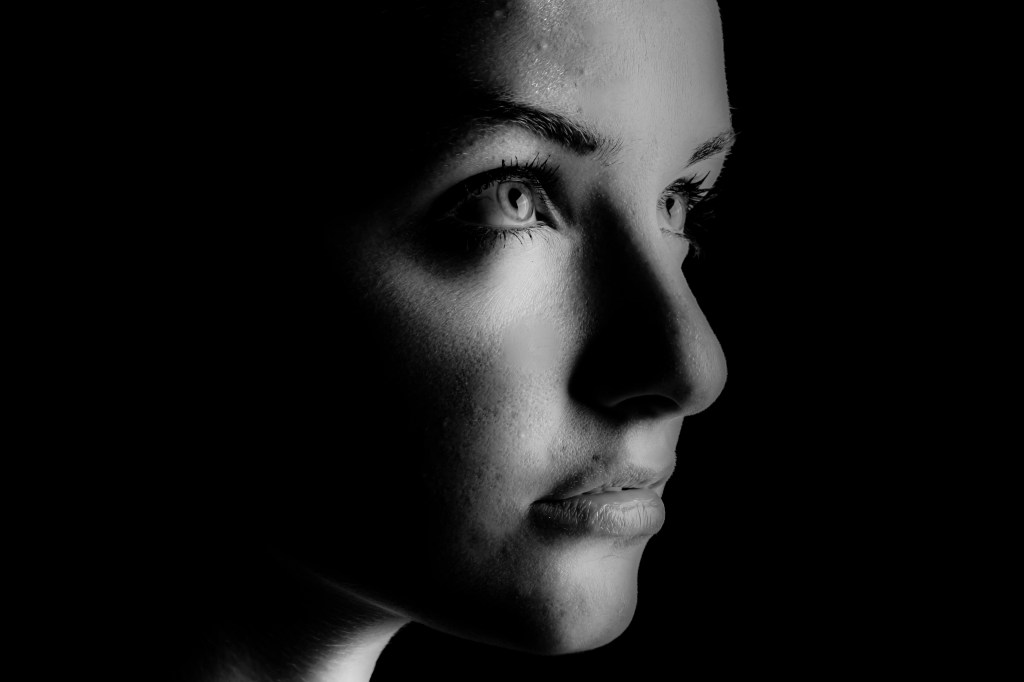
I converted the image to black and white as that’s my particular preference using the presets Infrared preset and adjust the contrast and noise before saving it .

Being a JPEG there are some obvious points where you can see blemish removal and Lightroom is limited in this way, I’d use Lightroom to retouch or heal spots in a landscape but not on a portrait i would normally use my Anthropics software or Photoshop if i had a lot of time on my hands. The out come would have been slightly better if I’d had a RAW DNG to work with.

To illustrate my point there was a landscape and a few other portraits in DNG format that i will have a play with and upload in part 2 of this post.

Developing A Preset

Activity 5.1: Create a Develop preset

In Lightroom Classic, Develop presets provide a way to save a group of settings and apply them to other photos. Once you create and add a preset to the Presets panel in the Develop module, it remains there until you delete it.

For this task, choose an edit you have applied to an image using the tools and techniques we have discussed during the last two modules, then save those edit settings as a preset.

Next, apply that preset to multiple images, and compare the results.

Creating a Develop preset

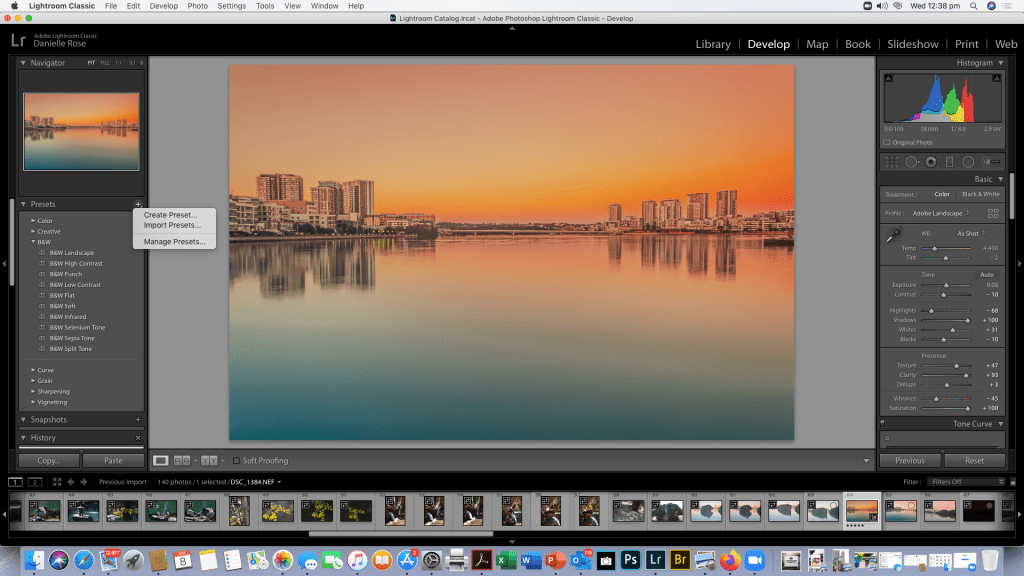
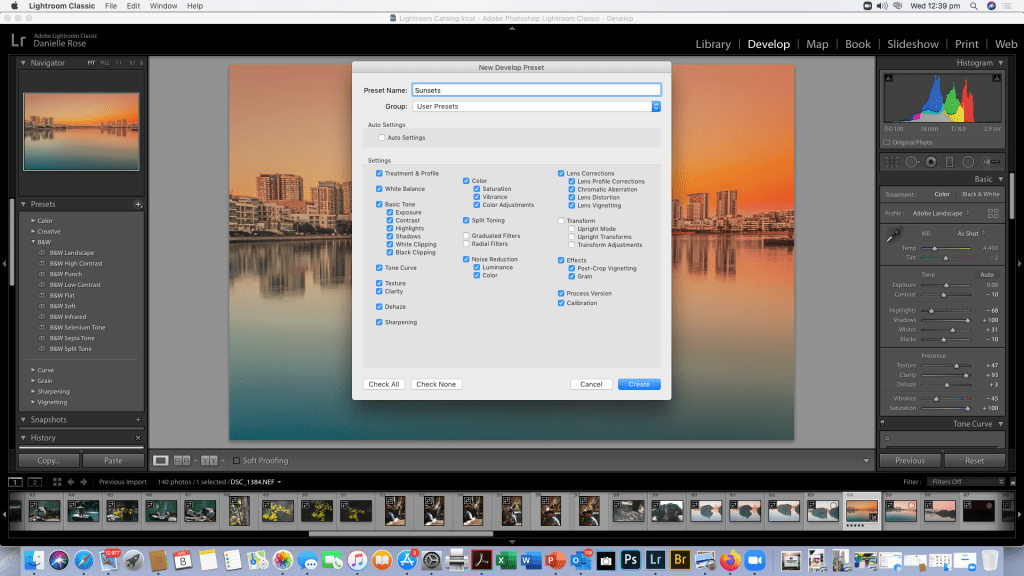
To start making your preset, go to the develop tab in Lightroom and you will find 9 options for developing your Digital Negative. Once you’re happy with your result, click on the plus sign on the left side of your screen. This will open a new window, to save your preset simply give your preset a name and select the settings that you used. You can either save your preset in a specific folder or in a general folder entitled User Presets. Once everything is how you want, click on Create.

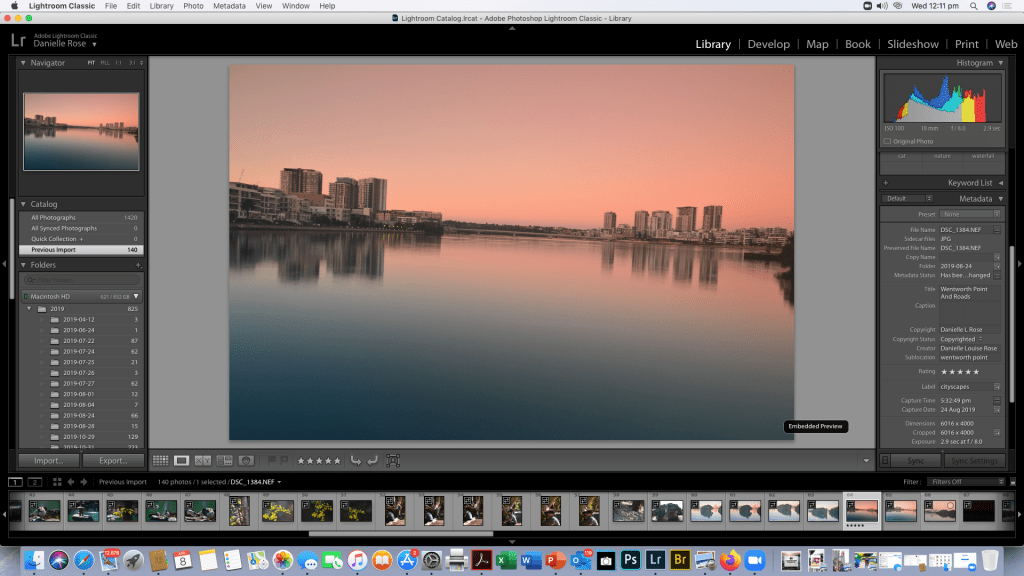
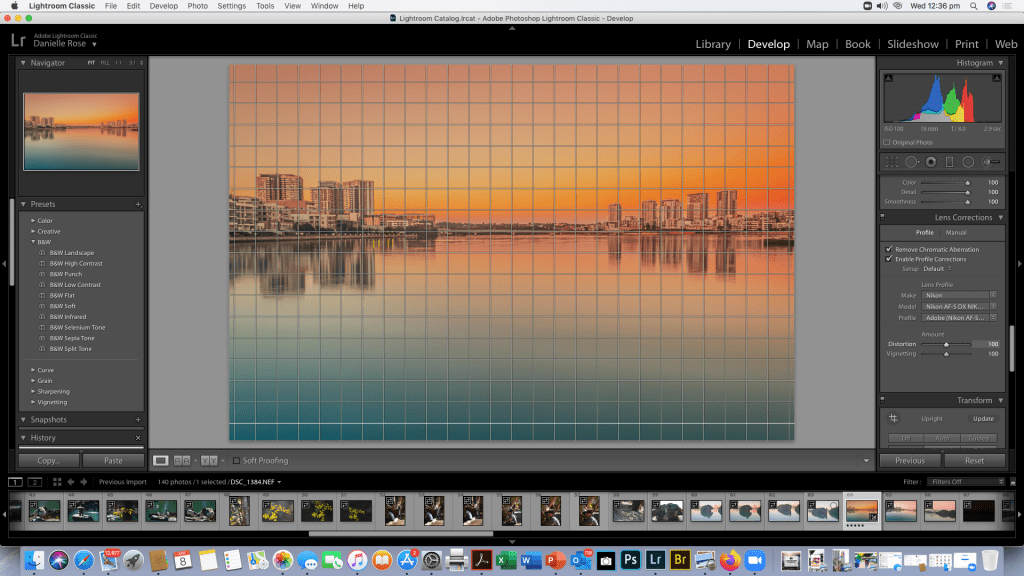
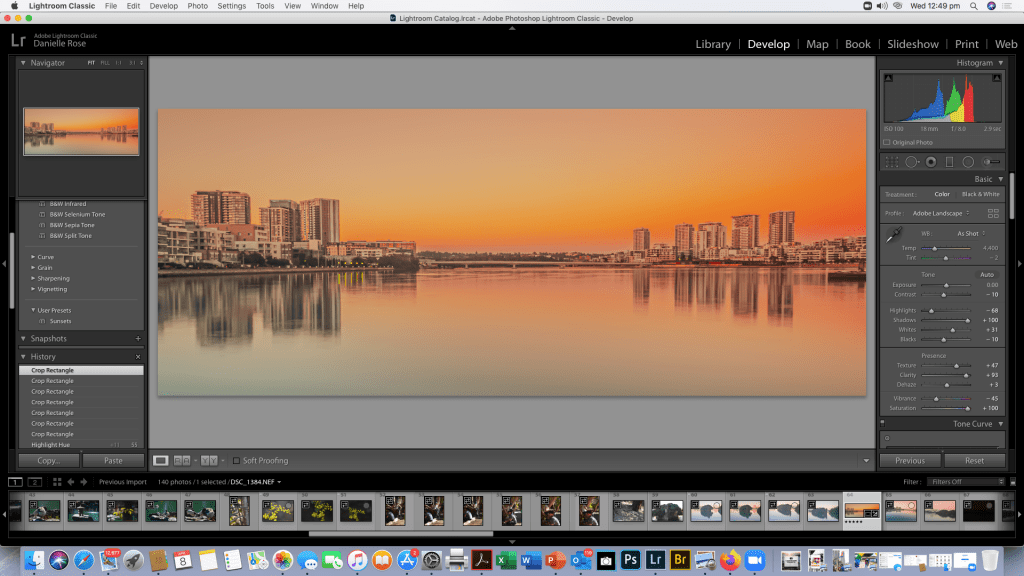
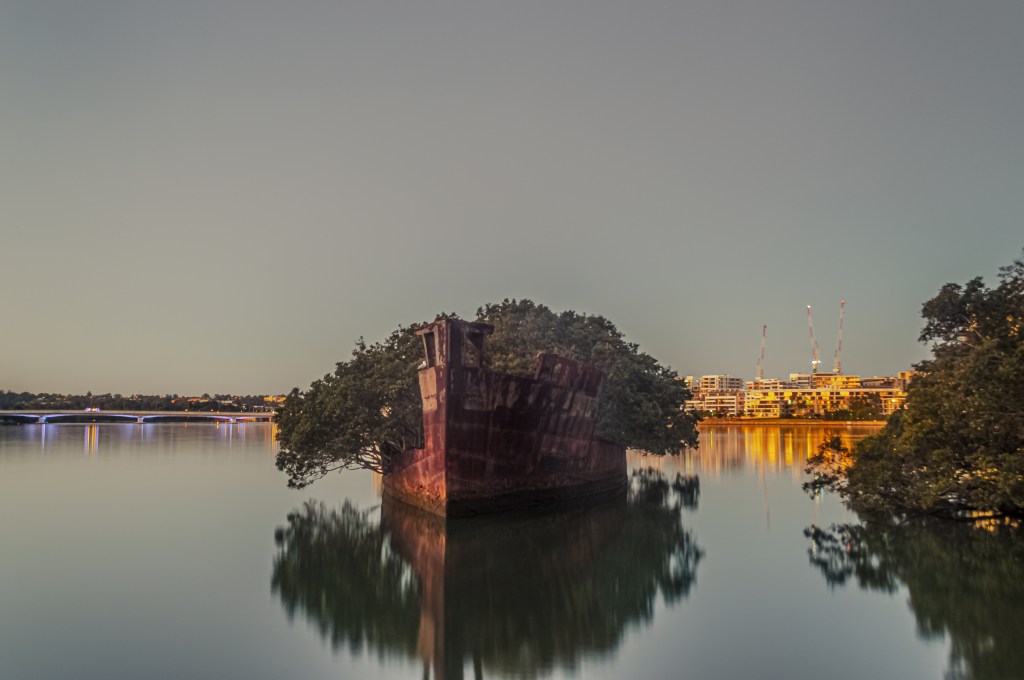
So the Photo I’ve chosen for this exercise is a Cityscape taken last year from Wentworth Point looking across to Rhodes on the Parramatta River NSW Australia.

After choosing my RAW image Ive started by calibrating my monitor (there was an incident with a cat and an air conditioner which resulted in a broken LCD on my 27inch iMac and a broken Pelvis)..(furry little bugger is fine in case you’re wondering!)

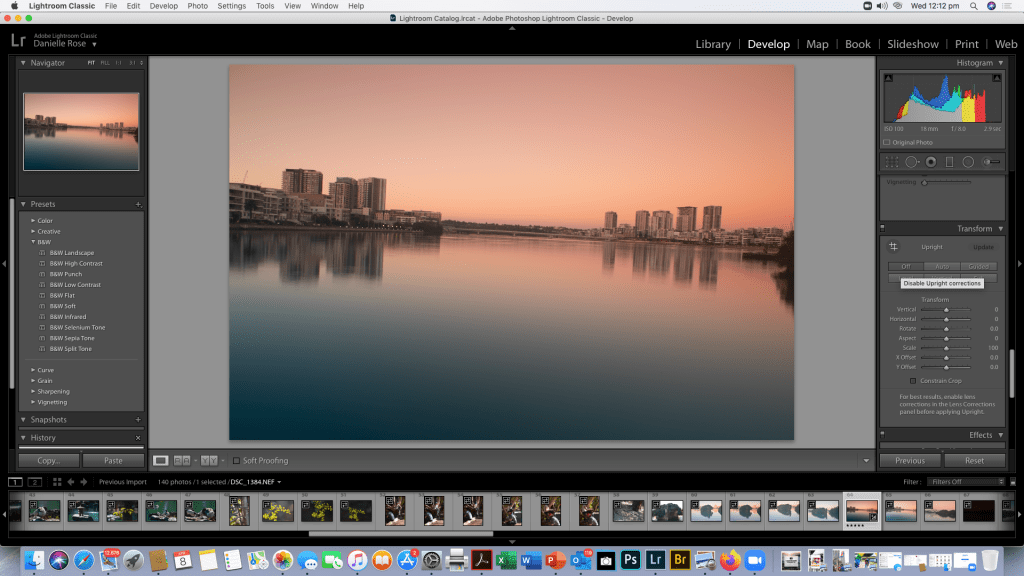
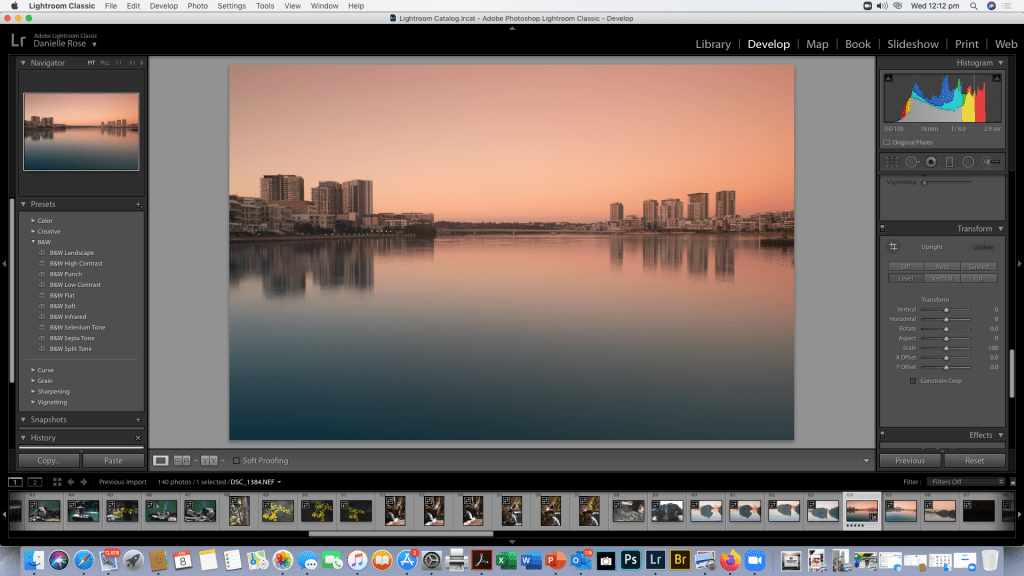
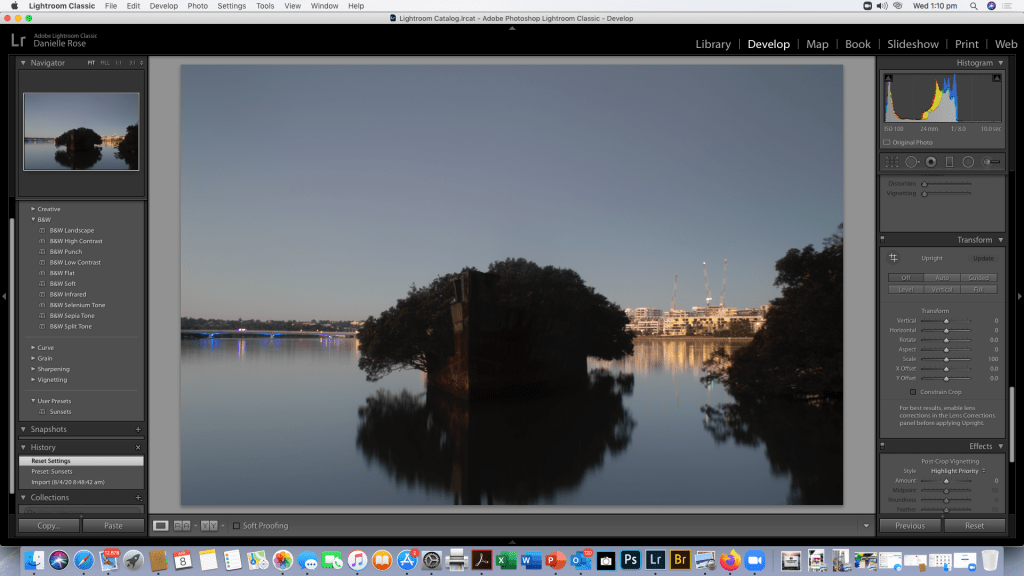
As you can see in the screen shot the horizon is a bit wonky as i knocked my tripod but the light was perfect so I took the long exposure as i knew i could correct it easily in Lightroom. So after putting my copy right details into the Library

Now that the horizon is level in this shot i will go a head and adjust my image to what i think will look best and screen shot the process of developing my RAW image.

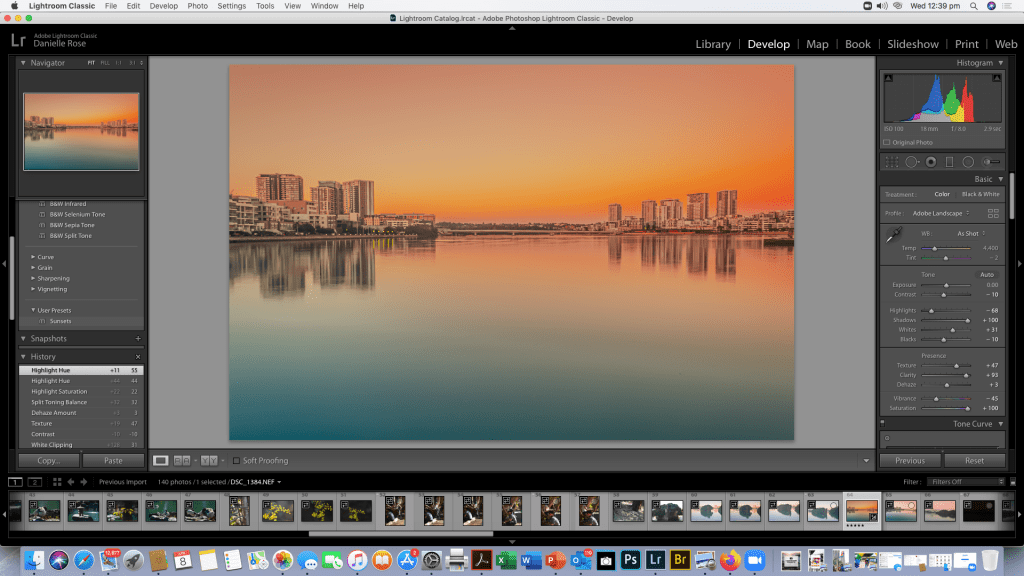
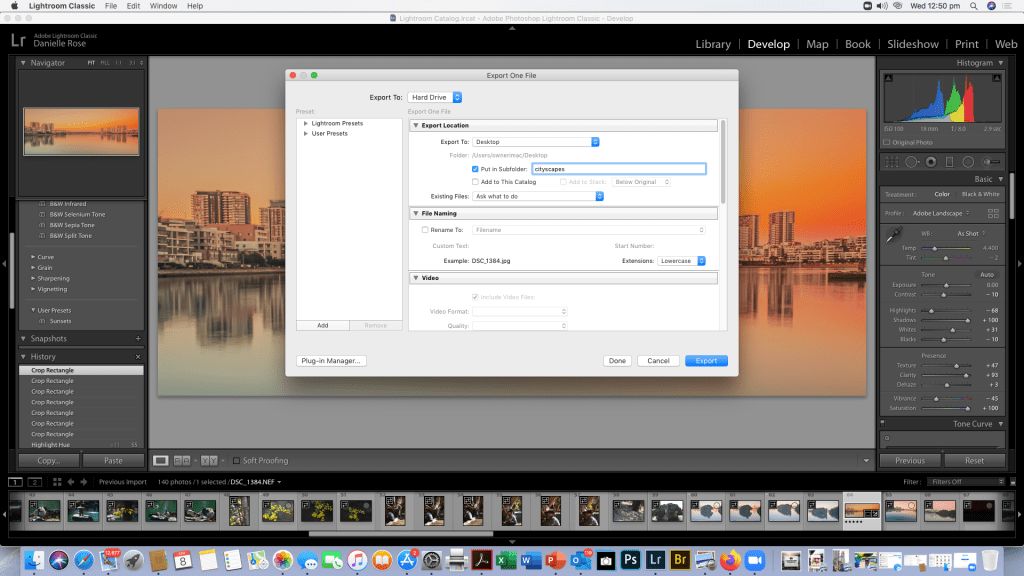
Now that the preset is saved i have decided to crop my image and then export it to the desk top for printing at a later date.

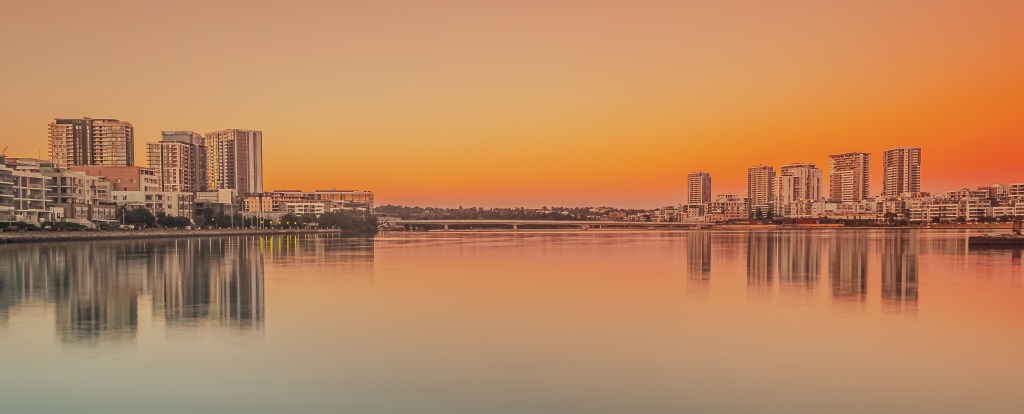
Now that’s all done, here’s the final saved Image saved in it’s file

Normally i probably wouldn’t saturate the colours so much i generally prefer a pinky twilight colour rather than an orange glow but the great thing about Lightroom is that now i can go back and reset the image to the original raw data and edit it in a completely different way as this version is saved on the hard drive or i could us this preset again for another image as per below:-

Ethics

Activity 5.1: Controversial image

Find an image from industry that has sparked controversy and discuss the reasons driving the response.

Activity 5.2: Photo essay ethics

Consider and prepare for the ethical considerations applicable to your photo essay shots.

Activity 5.1: Controversial image

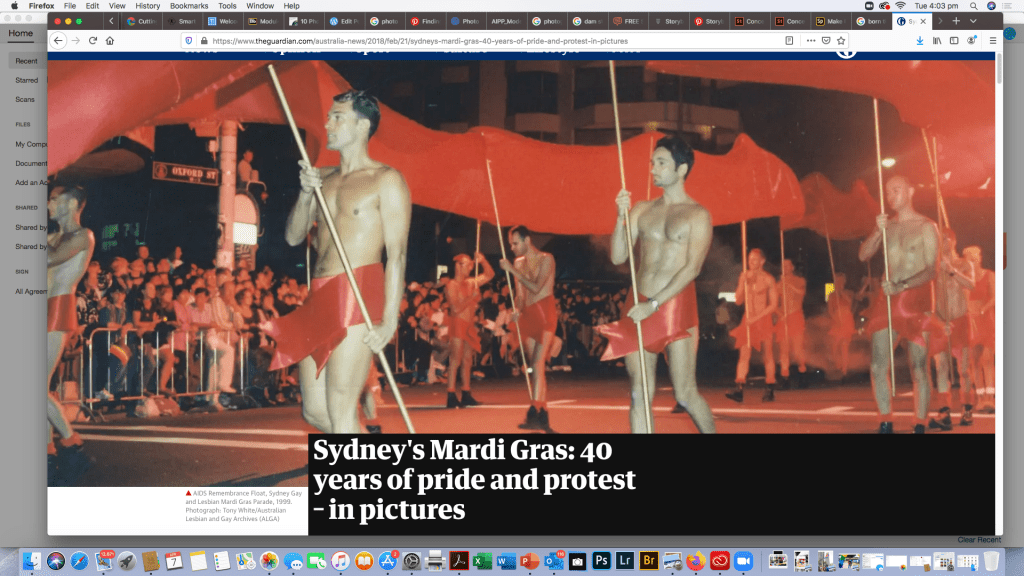
AIDS Remembrance Float, Sydney Gay and Lesbian Mardi Gras Parade, 1999. Photograph: Tony White/Australian Lesbian and Gay Archives (ALGA)

The Sydney Gay and Lesbian Mardi Gras has always been controversial from it’s beginnings in 1978 on the Day of International Gay Solidarity, 24 June 1978. The Gay Solidarity Group, following a morning protest march and a public meeting. At 10pm that night, people began to assemble at Taylor Square, with the crowd surrounding a flatbed truck with a sound system playing Meg Christian’s Ode to a Gym Teacher and Tom Robinson’s Glad to be Gay as they set off down Oxford Street to Hyde Park. The picture above as featured in The Guardian newspaper was particularly concerned with AIDS remembrance with Paraders wearing nothing but Red Ribbons.

Activity 5.2: Photo essay ethics

Ethically with mine there will be nothing sexual even though it’s about sexuality essentially as my daughter is A) 13 almost 14 and B) it’s not exploitative it’s documenting her life.

We’ve gone over this extensively and discussed the images were both comfortable in crowd situations/street events and in studio also any shots in hospital will not feature faces of medical staff or include other patients for privacy and ethical reasons unless their parent/guardian consents and signs release, but i am not comfortable about featuring minors in hospital for any reason other than my own child who is on board with the project

Photo Essay Structure

Activity 4.1: Photo essay structure

Chose an essay structure that suits your story: narrative or thematic. List each step needed to create your story timeline: include topic generation, subject research, subject confirmation, shooting and editing time and presentation creation.
Activity 4.2: Photo essay storyboard 6 essential shots

Prepare a basic storyboard (stick figures or phone photos) comprising of your 6 shots: Opening, Reveal, Establishing, Action, Environmental portrait and Closing.
Activity 4.1: Photo essay structure

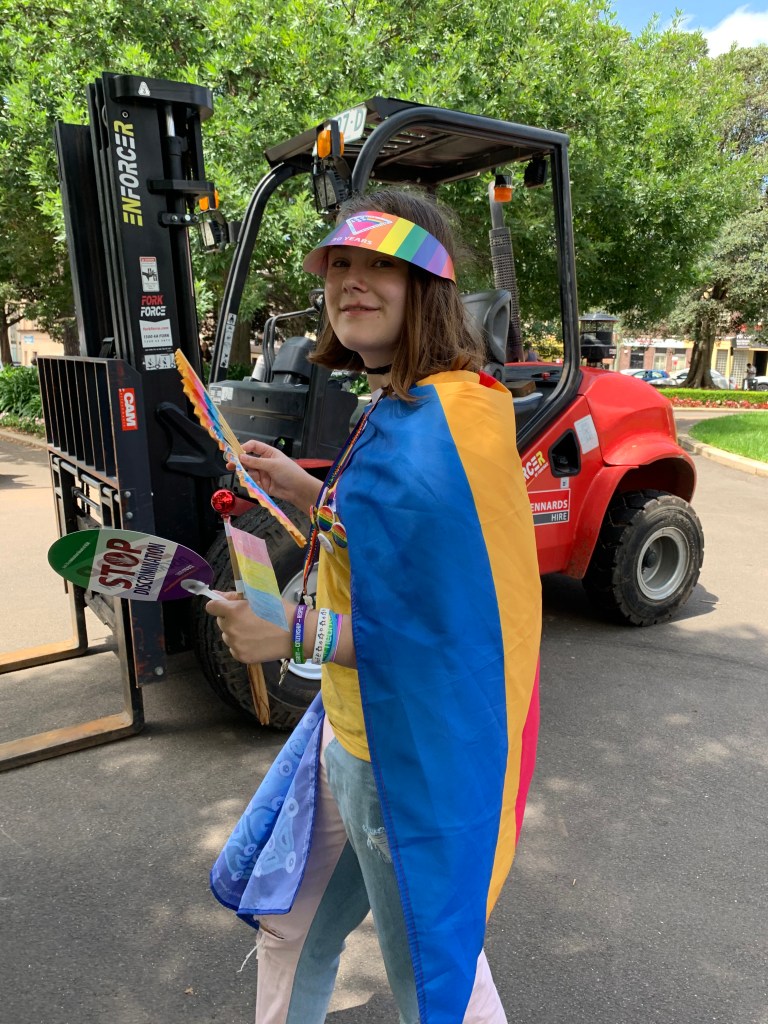
I’m still struggling with thematic or narrative. Do I go with bright bouncy Pride or a more structured narrative that includes the story of my child including hospital days as well as exploring the fun side of coming out to the world in her pride flag cape.

Activity 4.2: Photo essay storyboard 6 essential shots

Basic Story Board.

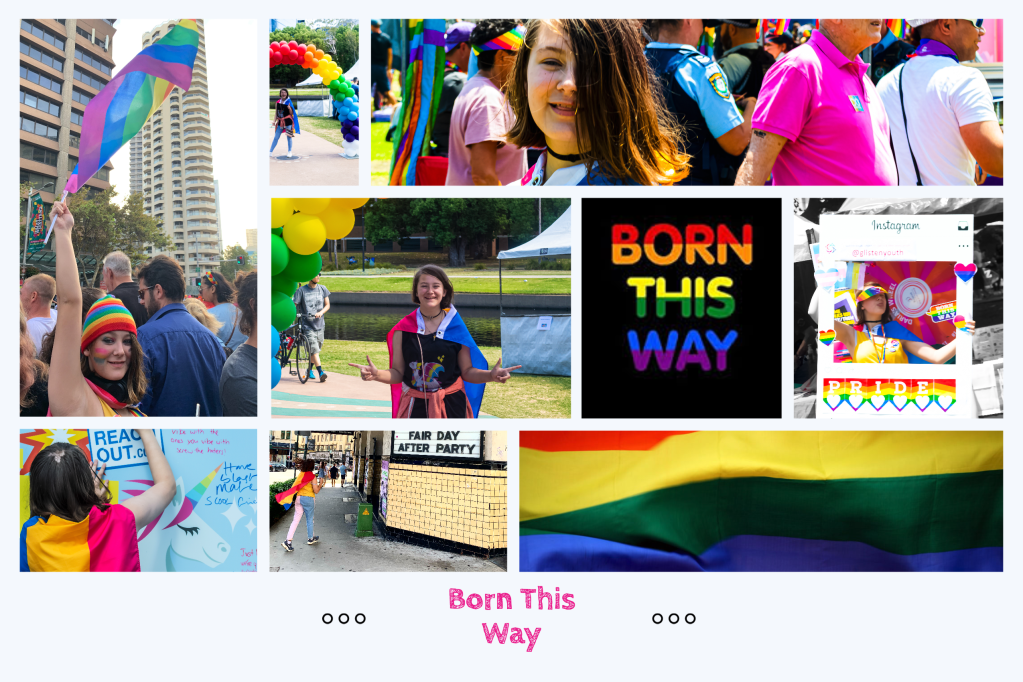
I’m still going through shots at the moment and expanding my theme to include studio and pictures of her in her room and at hospital to give you a picture of my daugter and what Born This Way encompasses for her…shes not just a gay kid or a sick kid she’s a complex individual and I want to show her and let her story shine. These are some of the essential shots of the Pride side of her personality. This isn’t my final layout…I’m playing with ideas constantly but if I was pitching to something about gay youth then i would totally go with this layout about a young teens first LGTBQI Mardi Gras Festival in 2020. Even though I may not go with this I’m printing it for her to put up on her wall. Gotta love Adobe Spark!

Workflow

Activity 3.1: Photo essay timeline

Prepare a 12 week shoot timeline with practical and achievable weekly targets.

Week 1 collating images from Para pride event her first Pride fair day
Week 2 planning mardi gras images and event photography style
Week 3 going through 900 images looking for the ones that encapsulate her experiance from Mardi Gras and pride fair day
Week 4 interviewing friend who’s daughter also came out in the last few years who volunteered at Mardi Gras in Sydney
Week 5 1st studio shoot
Week 6 2nd Studio shoot
Week 7 editing and refining images
Week 8 culling images down to 15-25 images to tell our story
Week 9 redoing any images that i feel could tell our story better
Week 10 final edits and preparing for delivery to publication
Week 11 backing up all files
Week 12 presentation

Activity 3.2: Photo essay DAM structure

Prepare DAM workflow structure for the essay with practical steps you will follow from image capture, download, backup, renaming, rating, editing, metadata and output

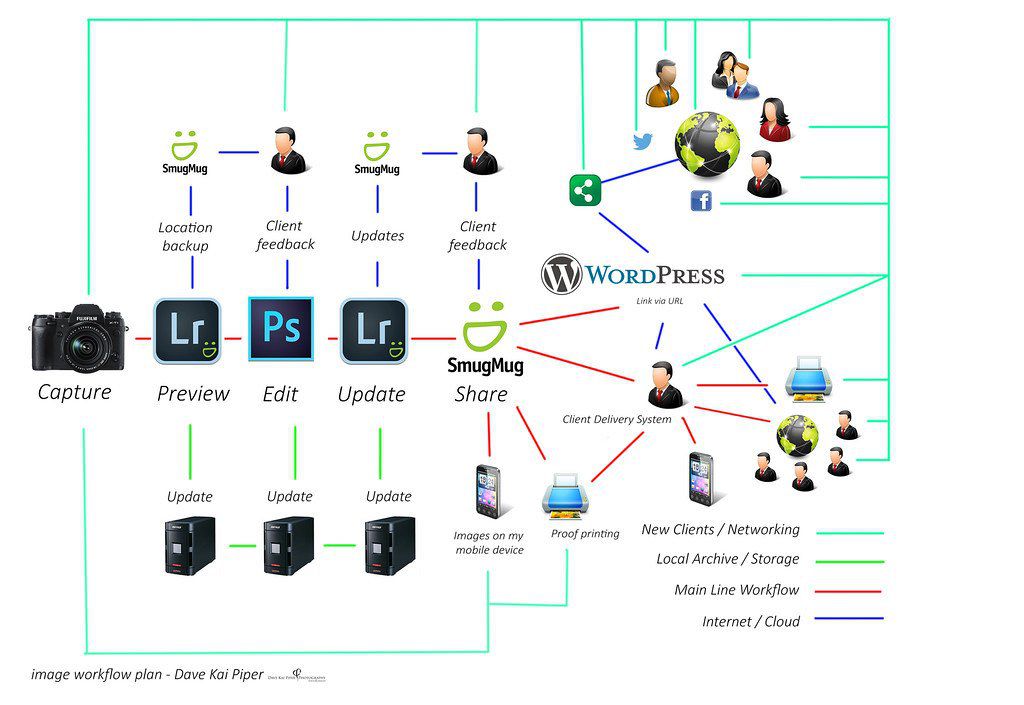
The Digital Asset Management strategy for this overall assignment will be in line with my normal 3 tiered DAM management for storage of files, and will incorporate , 2-3 Cloud storage sites ( 2 iCloud addresses and Dropbox) and a seagate external drive, mac hard drive for local file processing as well as SD card archives.

My workflow begins with Pitch to Publication, capture via Nikon DSLR/iPhone x , upload/preview in Lightroom, edit in Photo shop if required, export of edited files to BORN THIS WAY folder, back up folder in 3 tier storage. Layout, Presentation to Client.

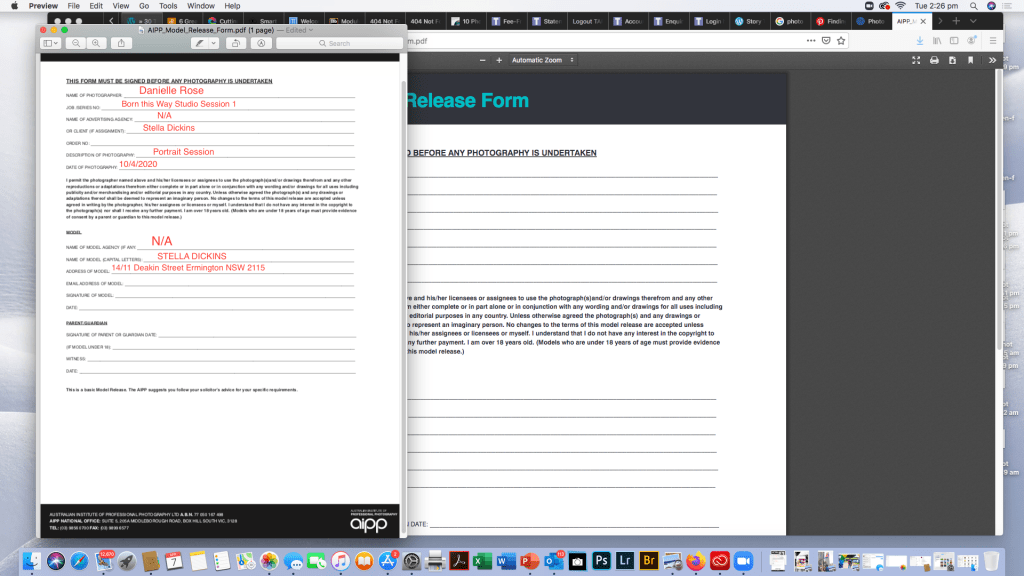
Activity 3.3: Model Release

Prepare a model release for use in your project. Use the AIPP Model Release form as an example to guide you in developing your own release form: